

This page gives the answers to the questions I have most often received from our users over the past few years. You should find anything you are looking for here, or in the MailShot User Guide.
If you are still stuck, please send me an email using the “Support” button provided from the title page of the app. This will include useful information about your device setup which helps me identify and solve your problem more quickly. It will also help if you let me know details of what problem you see and how you are trying to use the app- screenshots are always appreciated, too.
If you cannot access that Support button, as you are unable to install Mailshot for some reason, you can email me on mailshot@solubleapps.com.
Brief instructions for using MailShot
- Create a group, and give it a name. Add contacts using the “+” buttons or the “Import” menu. Tap “Update” to save it and return to the groups list.
There are several ways to send email to a group you have created:
- To create an email, select the group, then tap “Send Email Bcc:” or “Send Email To”.
- To forward an email tap the group name then “Copy to clipboard”. Now switch to your email app, and long-press in the address line of your email to paste the group into the address line. (or use Drag and Drop on iPad)
- You can also share documents, photos and weblinks from many apps by tapping their Share button, then selecting the MailShot icon.
This video walks you through creating a group, sending to MailShot groups, adding photos and documents, forwarding email to a group and sharing documents to a group from other iOS apps.
Problems And Solutions
Set which email account MailShot sends from
Why isn’t everyone in my group receiving the email ?
How do I send to only some of a group?
Sending photos and documents
I get an error message from my server when sending mail !
What can I do about sending limits?
Why do some contacts or groups show up in red?
I can’t find the Mailshot group in my address book
How can I sort the members of a group?
Sending Through Alternative Email Apps, Such As Outlook
Importing and Exporting
See this page in the User Guide for many different methods available for adding contacts.
Sharing MailShot groups between devices
Importing Address Book Groups
Importing a list of contact names and email addresses
Duplicating a group
Merging groups
Splitting groups
Sharing a group to someone else
Moving MailShot data to another device
Moving MailShot data between MailShot and MailShot Pro
Sending or printing a list of the contacts in a group
Turning manually-added contacts into real contacts in your address book
Upgrading
How do I upgrade ?
Do I have to pay twice if upgrade again ?
What is the difference between MailShot and MailShot Pro ?
Tips
Allowing MailShot to access contacts
How do I rename, delete or reorder groups ?
How do I remove , or edit contacts in a group?
How do I hide email addresses to protect privacy ?
How do I prevent people doing “reply all” to everyone?
How do I send mail to a MailShot group from a Mac?
Can I send mail to a MailShot group from the Gmail iOS app ?
Can I send mail to a MailShot group from the Outlook iOS app ?
How do I send several photos at a time to a MailShot group ?
How do I turn sound effects on or off ?
Adding a signature, or “Unsubscribe” button
Problems And Solutions:
Set which email account Mailshot sends through
The Mail app allows you to use several accounts at once, and you can choose which one to use in several different ways… (Note: You can also send using an alternate email app, such as Outlook, Spark or Gmail, which will manage accounts in their own ways)
To change the sending address for a particular email, tap the “From” line of that email and choose from your available accounts (those are set up on the ‘Passwords’ page in the Settings app)
To change the default sending address for your device, edit “Default” on the “Mail” page in Settings. This will affect Mailshot and the Mail app
To set a default sending address for Mailshot
Enter the desired address for the account you wish to send from in the “From:” line of the Mailshot page of the Settings app (If not already set up, add this account on ‘Passwords’ in the Settings app)
NOTE: This email address is case-sensitive, and must be correct. If there is no matching account, the existing iOS Default will be used. (TIP: You can verify which address will be used by looking at the “From” line of an email before you send.
Why isn’t everyone in a group receiving the email?
You may not have everyone in the group selected– if the number after the group’s name on the Groups page looks like “(23 of 25)”, for example, then only 23 of the 25 contacts in that group will receive your email. Tap “All” to select checkmarks for everyone in the group.
It is possible that you may have exceeded the per-email (or per-day) contact limit for your email provider, which is most often 100 contacts per email, but can be lower. (See here for some suggested solutions.)
If you are using a Gmail account you may receive bounce emails for every address in a group, with a note that they think the email may be spam. This may be due to the content of your email. This is only one of a number of issues with Gmail for group email. We advise users to try sending from a different email account, such as the iCloud.com account they often get with their device.
Occasionally the cause is a problem with the receiving server, or they have spam prevention policies to reject email that has been sent to lots of people at once.
Check the Outbox folder in Mail, to see if your emails are being stuck there- this means they are not leaving your device and getting to the server. Try again with a better data connection, then try resolving any reported issue.
It is also worth asking people who say they did not receive your email to check their spam filter, if this only affects a few of them.
If only the first person in a group receives your email, you may be using a very old sending method (sending to a contact with your group’s name as a contact from the Mail app) This can no longer be used since iOS9. Check the Tutorial Video on the Support page in the app to see the three methods to use.
NOTE: If you would like a group to test with, create a test group in MailShot containing these three addresses: support1@solubleapps.com, support2@solubleapps.com and support3@solubleapps.com. Send an email with that group in the “to” line, and a quick note describing any problem you are trying to solve. We will be happy to take a look for you and report back.
How do I send to only some of a group?
MailShot allows you to select only some members of a group. This is useful for sending to teams, when only some members are currently playing, but you might also use this to include only friends that have accepted a party invitation, or members that have not yet renewed a subscription. (using the checkmarks to track when someone accepts, or renews)
The list of members in a group has checkmarks down the right-hand side of the page. A member is excluded from email to the group when their checkmark is cleared.
You can Select all checkmarks at once using the “All” button at the bottom of the page, or deselect all checkmarks using “None”.
I get an error message from my server when sending mail
Note: iOS says there is a bad address in the group as a “catch all” error message, and this may not actually be the cause of the problem.
There are a few possible causes of an error message.
The app you are sending from– Try sending from the MailShot app itself.
Exceeding the limits of your mail provider as to group size, number of contacts per day, or message size. See here for further information.
Mistyped, or out-of-date address information (this is especially likely if you entered the addresses manually, rather than selecting them from your address book). If you receive an “undelivered email” message read it carefully, as it will normally tell you exactly which email address caused the problem. Send it to us if you are stuck and we will interpret it for you. TIP We have seen some email services (Yahoo!, for example) reject an entire email if it includes an incorrect address on their domain, so be particularly careful to check the accuracy of all addresses on your own provider’s domain.
What can I do about sending limits?
To prevent spam, many email providers restrict how many contacts you can address with a single email, and/or how many people you can contact within a set time period. This can vary from provider to provider.
Most popular providers impose a limit of 100 contacts per email from iOS , including Gmail*, Hotmail, and Yahoo!, but AT&T only allow 50, and Lycos only allowed 25 the last time we looked. (See here for limits on daily rates and email limits from various providers.)
As the 100 contact limit is quite common, MailShot pops up a warning box whenever you create a group larger than that. (If this limit is not relevant, you can disable these warnings from the MailShot page of the Settings app on your device.)
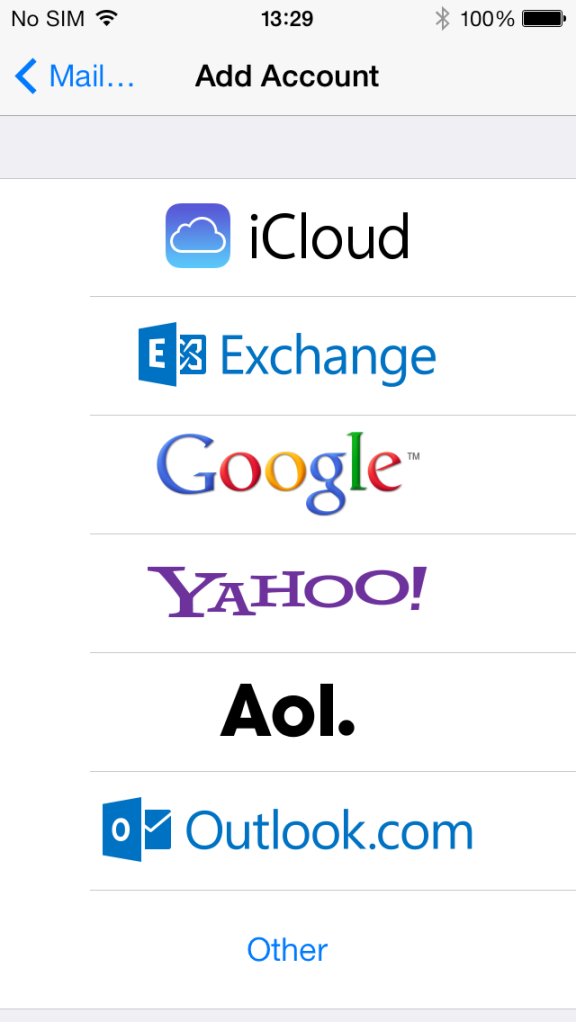
There are a few possible solutions if a limit is an issue…
Consider changing your email provider to an account with more generous limits. (You can use this additional account alongside your existing one, your device can easily manage multiple email accounts, and show them as though they were a single account.)
iCloud.com currently allow 500 contacts per email/ 1000 per day, so this is what we recommend.
You may obtain higher limits from paid services such as Fastmail.com, starting with 500 contacts per email/ 2000 a day for around $10 a year.
TIP You can select which account you are sending from, with a tap on the “Cc/Bcc.From” line in the Mail app. You can change the default sending address from the Mail page in the Settings app.
For help splitting MailShot groups into smaller groups- see Splitting MailShot groups.
Sending photos and documents
Mailshot uses the iOS email compose window. So you can use all the same techniques you would use in Mail.
Insert a photo or video by tapping where you want to add it in the text, and holding for a second or two. A black pop-up menu will appear. Tap the right-facing triangle and select “Insert Photo or Video”.
You can also add documents directly from iCloud Drive and Dropbox, by tapping once more on the triangle and selecting “Add Document”.
On iPad, both of these functions can be performed with shortcut buttons above the keyboard.
An alternative method is to go to the app you view the document or photo in, tap Share, then select the Mailshot icon. This is a good way to send multiple photos at once from the Photos app.
Why do some contacts or groups show up in red?
If you enable “Red Contacts” on the MailShot page of Settings, MailShot will highlight an address that is no longer present in your device’s address book in red to draw your attention to it, in case the email address needs to be updated.
Any group that contains red contacts, will also appear in red on the Groups page.
Email will still be sent to those addresses,
NOTE Contacts that were added manually will not appear in red, as the app does not expect to find them in your address book.
I can’t find the Mailshot group in my address book
We do not use groups in your address book. This avoids many limitations of that method. For instance:
- Not all contacts need to be in your address book (great if you have large groups, and do not want them cluttering up your address book)
- You can ask Mailshot to use a different email account for sending group email from. (Great if you usually use Gmail or some other account which has erratic group email handling. Instead you can use iCloud.com or some other account which has no issues with large email groups.)
- You can choose which email account to send email to for a particular contact, and you can choose their home or work email depending on the nature of the group they are a member of.
- Not all types of address book support groups. This avoids that problem too.
You can see the different ways to send group email from Mailshot (from the app, by copying to clipboard, or by sharing) demonstrated in our Tutorial video.
How do I sort the members of a group ?
Group members are automatically ordered by surname
If you prefer to sort based on the entire name, enable the option to “Sort On Full Name” on the Mailshot page of the Settings app.
Alternatively, the option to “Show surname first” will display the name used for sorting (typically surname, first name). This option can be found on the Mailshot page of the Settings app.
TIP: If you really need members in an arbitrary order– such as players in a team, sorted by player number, place a number at the start of their Sort field. For members that were added manually, you can edit the Sort field for each member by selecting them from the list in Mailshot.
If those members were added to MailShot from your address book…
- Temporarily turn off your synchronised address books in “Mail,contact calendars” in the Settings app (this is found in “Contacts”, in Settings for iOS 10) and remove them from your device.
- Tap each member in MailShot, entering the desired information in the Sort field
- Turn the address books back on.
“Drag and Drop” on iPad
You can drag and drop a group directly from Mailshot into another app running beside it on iPad.
Let’s show how to do this with Mail, to address or forward an email…
- Ensure Mail is on the taskbar on your iPad
- Run Mailshot on your device, and tap Start.
- Swipe up from the bottom of the screen, revealing the taskbar, then drag Mail up and to the left or right of the screen. the screen will be split. Move the centre line so thatMailshot only uses a thin strip of your screen. Perhaps rotate to landscape.
- Start an email in Mail (or forward an existing email)
- to address the email drag a group from Mailshot and drop it onto the To or Bcc line of the email. If necessary dismiss the keyboard from Mail.
Note that the iPad will remember how apps are paired- so Mailshot may already be there the next time you start Mail.
If you are in Mail and have dismissed Mailshot a quick way to access again is by exiting Mail, starting Mailshot, and then dragging Mail from the recent area of the Taskbar. (consider placing Mailshot in the permanent area of your taskbar).
TIP: You can also use drag and drop to drop a list of contacts into the body of an email, to share it to someone
Sending Through Alternative Email Apps, Such As Outlook
iOS 14 adds a new ability for iOS to use an alternate email app in place of Mail, such as Outlook or Spark, or apps from email providers themselves such as Gmail, when you click a link in Safari etc.
To enable this option, go to that alternate app’s Settings page and select it as the “Default Mail App”. You will also need to enable “Allow Alternate Apps” on the Mailshot Settings page, to use a URL-based method to send email, instead of submitting to Mail.
This URL method has a few differences and limitations…
It will ignore any “From:” address you set in Mailshot Settings, even if you still have Mail set as your default email app. Your choices for “To:” will still be used.
Share extensions cannot send attachments, such as documents or photos. Mailshot will offer to send attachments through Mail (if it is available) instead, or to send a link or text, if that was also shared by the source app.
Importing and Exporting
Sharing MailShot groups between devices
(See here for how to share groups to other people.)
Groups are automatically shared between your iOS devices through iCloud.
If your groups are not synchronising, please check the following:
- That you have iCloud enabled on both devices, using the same account
- That you are running the same edition of the app on both devices (Either “MailShot/MailShot Upgraded”OR “MailShot Pro”)- These are separate apps on the Store, and do not share data with each other.
- That you are connected to Wifi or a strong mobile signal on both devices.
Importing Address Book Groups
See this page in our MailShot User Guide for instructions on how to easily import contacts from address book groups. You must be able to see a group in the Contacts app before Mailshot can access them.
Importing a list of contact names and email addresses
For more about this feature, see 5F: Pasting A String of Addresses in the User Guide.
TIP: For mac, you may find a free app called Email List Maker useful- it strips all the email addresses out of a block of text, and creates a list which MailShot can import.
Extracting addresses from a received email
iOS devices interpret addresses in an email header in a special way. This makes things a little more complicated…
Do “Send again” on an email sent or received from the group ( in your Sent folder or Inbox) then tap the “Bcc:” or “To:” line of the email (to open it up), choose “Select All” from the black pop-up menu which appears, and “Copy” using the same menu.
This will place the list in the clipboard (you can discard the new email) . Now create or edit a group in Mailshot and tap “Import” and “Paste from address string” to import the names and addresses from the clipboard.
OR
You could view your email in a web browser, copy the string from the header and email that to yourself, then…
- Open this email in Mail on your iOS device
- Copy the long string of addresses. (TIP- Start your selection with piece of text that is not part of an email address, then drag the start and end points to select the entire list and tap “Copy”)
- Create a new group in MailShot
- Tap “import”, and select “paste an address string”
- Paste the string into the text box
Importing a distribution list from Outlook
We will create a string of email addresses in Outlook, email the list to our iOS device, and then paste them into MailShot.
- In Outlook, open a new blank email, and address it to your Outlook group.
- Copy (Ctrl-C) all those addresses from the To line of the email to the clipboard.
- Paste (Ctrl-V) the addresses into the body of the email.
- Re-address the email to yourself.
- Open the email in Mail on your iOS device
- Copy the long string of addresses. (TIP- Start your selection with piece of text that is not part of an email address, then drag the start and end points to select the entire list and tap “Copy”)
- Create a new group in MailShot
- Tap “import”, and select “paste an address string”
- Paste the string into the text box.
Getting a string from a spreadsheet program
You will need to get the data held in your spreadsheet program into a text format, similar to this:
contact name , contact name …
We will walk you through an example step-by-step, which should handle most possible data structures. We will do this exercise in the free Google spreadsheet available at docs.google.com as this is accessible to everyone. The principles are the same in Excel or Open Office.
I will start from a spreadsheet (sent by a user), containing firstname, lastname and email address in separate columns, plus some other data we will ignore. We will use the CONCATENATE() function to create a usable format from those strings.
- Open up your spreadsheet in Google docs, and create a new column A. (In our case surnames are in column B , first names in C, and email addresses in D. Row 1 contains headings)
- In cell A2, enter the formula ‘=CONCATENATE (B2;”, “;C2;””)’. (Don’t forget the = at the start.) Adapt that formula as needed. For example, if you have a full contact name in B and an address in C, you would use ‘=CONCATENATE (B2;””)’ .
- Duplicate that formula to the rest of column A. This will fill it with strings like “lastname, firstname “.
- Copy column A and paste it into an email in your mail program. (If needed, you can edit it there to fix any errors)
- Send that email to an account you can access from your iOS device.
- Copy the string from that email in Mail on your iOS device.
- Go to the “Paste Address String” page in MailShot and paste it into the text box.
Note that Mailshot can now save a group as a .CSV file, which can easily be imported into a spreadsheet program.
Duplicating a MailShot group
Select the group, and choose “Duplicate”
Merging MailShot groups.
- Create a new group, or open a group to add more contacts to.
- Tap “Import” then “Another MailShot Group”
- Select the group to add from (the group you are currently editing will be unavailable)
- Use checkmarks to select contacts (Use “All” and “None” for rapid selection)
Any contacts already in the group will be skipped.
Splitting MailShot groups.
MailShot includes an option to easily split large groups into smaller groups of less than 100 (the most common limit imposed by email providers. See What can I do about sending limits?)
Just select a group, and choose “Split Group <100”. This will rename the old group as “Groupname-All”, and create smaller new groups called “Groupname- A”, “Groupname- B” etc.
If you need more control, you can do this a different way by duplicating the group, then removing different contacts from each copy.
Or you could do it by importing contacts from the large group into a few smaller groups. For example, to split an existing “GROUP130” into two groups, “GROUP60” and “GROUP70″….
- Create a new group, called GROUP60
- Tap + and select the group contact which the large GROUP130 previously created in your address book. All of the individual contacts from that group will appear as a list.
- Select the first 60 contacts with a checkmark, and tap “done” (making a note of which is the last contact you selected.)
- Tap “Update” to write this group out.
Then create the second group…
- Create a new group, called GROUP70
- Tap + and again add the contact the large GROUP130 created in your address book.
- Select the last 70 contacts with a checkmark (starting after the contact you noted earlier) and tap “done”.
- “Update” the group, to write it to your address book.
Sharing a MailShot group to someone else
Use “Copy to Clipboard” to create a list of email addresses and names which you can paste into an email and send to someone
If they also have MailShot they can import it using “Import”, then “Paste from address string” See here for more.
You can make this list easier to read by enabling options to add carriage returns, omit names etc. on the Mailshot Settings page.
You can also save a group as a .CSV file, and email that to someone else.
Moving MailShot data to another device
Your group data is automatically shared between all your own iOS devices using iCloud, so this is only needed for cases where that does not apply.
To transfer all data at once using iTunes File Sharing
First you need to get MailShot to put its data somewhere accessible by iTunes.
- Go to the MailShot page in the Settings app, and enable the switch marked “Save To Public Folder”.
- Turn your device fully off and on (Or stop MailShot from the task switcher)
- Run MailShot again.
Now
- Connect the device with the data you wish to copy, and open iTunes.
- Now select the device in the drop down list.
- Select “Apps” in the menu bar
- Scroll the whole page down to the “File Sharing” section
5. Select MailShot or MailShot Pro from the list of apps at the left of the screen (whichever contains the data you want to copy)
6. Then click and drag the two .plist files to a folder on your desktop (or somewhere else safe)
To copy the files to your second device, reverse the process.
- Ensure that Mailshot or MailShot Pro is installed on your new device, then reboot that device (so the app is definitely not running.)
- Repeat steps 1 through 5 for the new device…
- Click and drag the two files you previously saved to your machine into the window for the new device.
Once you have checked that this worked, it is probably a good idea to remove MailShot from the first device, to avoid future confusion.
Moving data between MailShot and MailShot Pro
You can do this using iTunes File Sharing.
First you need to get MailShot to put its data somewhere accessible by iTunes.
- Go to the MailShot page in the Settings app, and enable the switch marked “Save To Public Folder”.
- Turn your device fully off and on (Or stop MailShot from the task switcher)
- Run MailShot again.
Then
- Connect the device and open iTunes.
- Select the device in the drop down list.
- Select “Apps” in the menu bar
- Scroll the whole page down, to the “File Sharing” section
- Select MailShot from the list of apps at the left of the screen (whichever contains the data you want to copy)
- Click and drag the two files in the right window to a folder on your desktop.
- Select Mailshot Pro on the left
- Drag the two data files from the desktop, into the window on the right.
Note that this will overwrite any groups you have set up in the other app.
Sending or printing a list of the contacts in a MailShot group
To send a list to someone, use “Copy to Clipboard”, then paste into an email. To add a carriage return between each pair of names and addresses (to make it easier to read,) enable a switch on the MailShot page of the Settings app.
To print a list of contacts in a group, select your group and tap “Print”, then choose an AirPrint-compatible printer to print to.
Turning manually-added contacts into contacts in your address book
If you have already sent an email to the group, here is the easiest way to turn some or all of them into individual contacts if you need to do so..
- Locate an email that you sent to your MailShot group (in your “sent” directory in the standard Mail app).
- Each contact will appear in its own blue bubble. Tap on each one in turn and select “Create New Contact” to add them to your address book.
Upgrading
How do I upgrade?
There are two ways to upgrade from the free version of MailShot- you can either upgrade it with an in-app purchase, or download MailShot Pro from the App Store.
An advantage of using in-app purchase is that you can keep any groups you have already set up, whereas the MailShot Pro route is a little more straightforward, but they provide the same abilities..
NOTE MailShot and MailShot Pro are considered as different apps by the App Store. Once you choose your preferred method to upgrade, please stick with it in future to avoid being charged twice.
A prompt inviting you to upgrade with an in-app purchase will appear whenever you try to exceed the limits of the free version of ‘MailShot’. This will also be offered if you tap the ‘Restore Purchase’ button on the title screen, and no previous purchase is found.

Once your upgrade is confirmed, you will be able to create up to 100 groups, each containing up to 100 or more contacts (subject to any restrictions from your email provider). It will now also display an “upgraded” badge on the title page.
If you see a message that “In-app purchases are not enabled on your device. You can change this using the Settings app on your device, you will need to make a change in the Settings app as follows:
- Go to the Settings app, and select “General”.
- Scroll down a little (on iPhone) and look for a line that says “Restrictions”. You’ll need to enter your pass code to access the next screen.
- check the position of the “In-app purchases” slider within it. This slider should be set to the ON position to allow a purchase.
If you get a message about being in a “Sandbox environment” when you try to upgrade, this can occur on a Jailbroken device in combination with certain jailbroken apps. Please Google for more information on this issue, we cannot provide support for this.
Any further problems upgrading, please let us know on support@solubleapps.com.
Do I have to pay twice if I upgrade again?
If you need to reinstall at a later date, or want to upgrade a second device, you won’t have to pay for the upgrade again.
If you originally upgraded the free version of “MailShot” with an in-app purchase, tap “Restore Purchase” on the title page. This will check the App Store for you and restore any upgrade purchase it finds for your account.
If you purchased “MailShot Pro” then you should download it again from the App Store. You should see a cloud symbol on the button, rather than a price, indicating that the App Store knows you have already purchased that version.
What is the difference between “MailShot” and “MailShot Pro” on the App Store?

“MailShot Pro” is the full version, which can create up to one hundred groups of one hundred or more contacts per group (the actual limit depends on your email provider- please check with them for their limit, or Google “provider’s name email send limit”, or similar).
A free version of “MailShot” is also available which can be upgraded through an in-app purchase to the same capabilities as MailShot Pro. This upgrade purchase is offered when you exceed the capabilities of the free version.
When you upgrade, an “upgraded” badge appears on the title screen and the “restore purchase” button is replaced by other options.
“MailShot Pro” and the upgraded version of “MailShot” are equivalent in features, but are regarded as two separate apps on the App Store, please do not download both the in-app upgrade and MailShot Pro, as you will be charged twice. If you are unsure which version you purchased, look at MailShot Pro on the App Store- if it shows a cloud icon then that is the version you purchased, and it will be free to download again.
Tips
Allowing MailShot to access Contacts
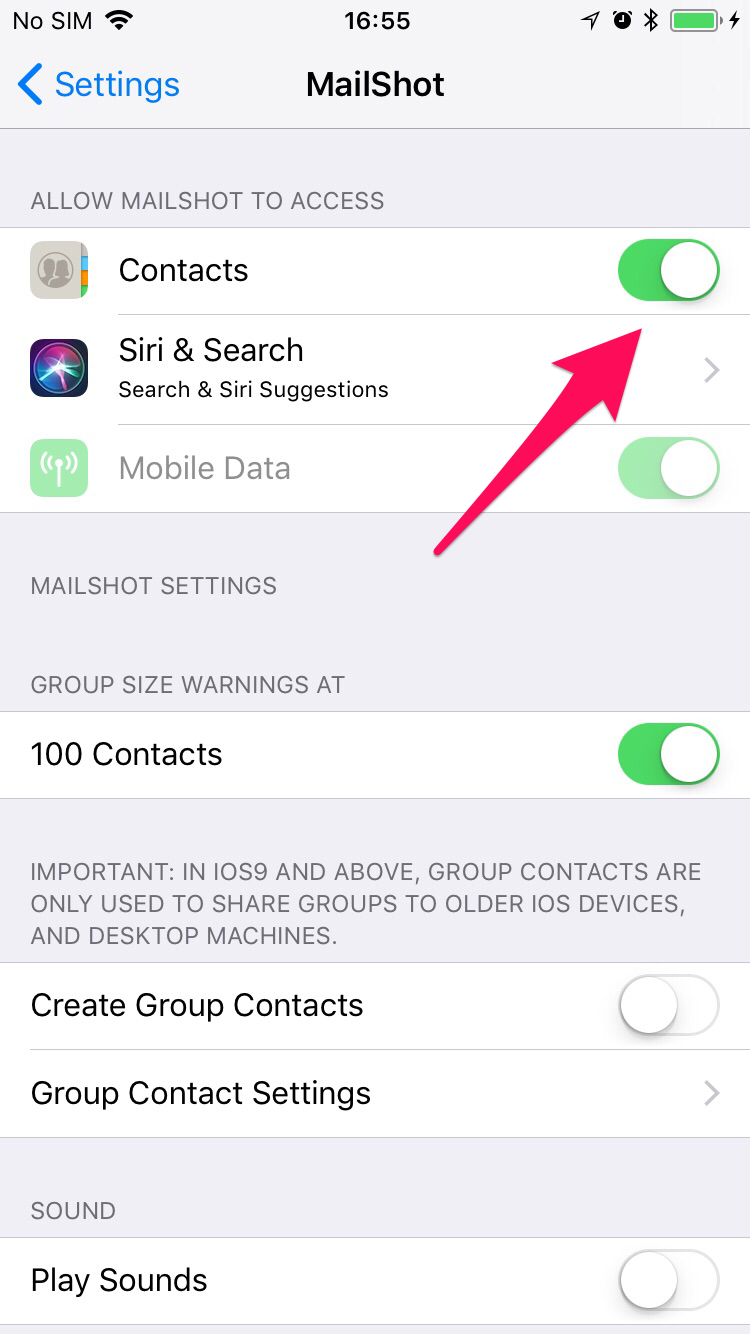
MailShot works best when given permission to access your address book. This allows Mailshot to create a checklist to add contacts from more quickly, allows you to import contacts from an Address Book group, and also allows the app to spot when a contact’s email address changes, and may be out of date.
If you do not grant this permission, you can still add individual contacts from your address book, but features which make the app easier to use will not be available.
You can grant this permission later, from the MailShot page in the Settings app. (Unless you have Parental Restrictions enabled, in which case you should allow access from ‘Restrictions’ on the ‘General’ page of the Settings app.)
NOTE: Your contact data is NEVER shared with us here, everything is stored entirely on your device and in your iCloud. (Here is our privacy policy)
How do I rename or delete MailShot Groups?
Select the group, then “Delete Group” or “Rename Group”
Or you can delete a group quickly by swiping from right to left across the group name, revealing a “delete” button, just as you would in Mail or Messages.

Groups are automatically ordered alphabetically in MailShot 5.0 and up.
How do I remove, or edit contacts in a group?

You can edit a group using the arrow next to its name
To delete a contact from your group, use the iOS delete shortcut: Swipe from left to right across the contact you want to remove, then tap “Delete” to confirm.
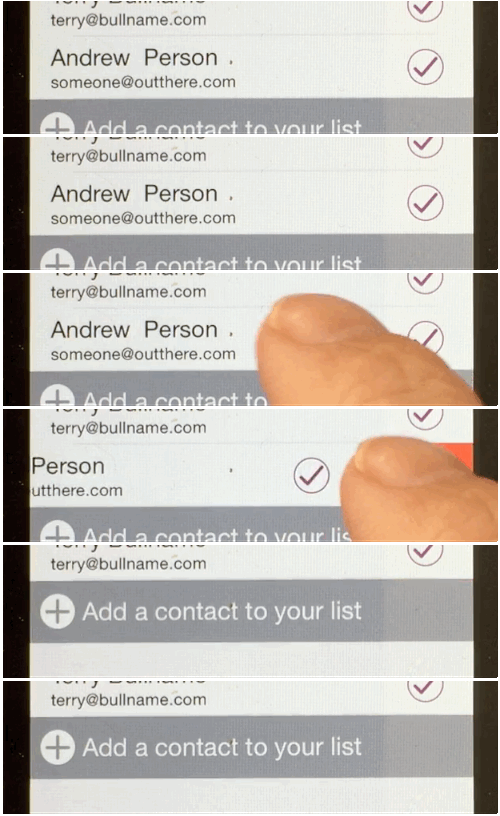
To change the email address for a contact, first edit the address in your address book (using the Contacts app) then go to the page in MailShot that lists the contacts in your group, and select the old contact. This will open up a page showing all the known email addresses for this contact, select the one you wish to use.
This page in the User Guide tells you more about the Contacts Page, and how to change the order of contacts etc. The following pages tell you about all the different ways available to add contacts to MailShot.
If your MailShot group does not reflect changes you have made, please ensure that you did all the following:
- Tap “Update” after making your changes, to write them to your address book.
- Check you don’t have more than one contact with a similar name.
- Be sure to address your email using the blue “+” in the To or Bcc lines, then select your group contact directly from the contact list. (Don’t type the group name into the address line)
How do I hide email addresses to protect privacy?
It is polite to protect the email addresses in a larger group.
You can do this by placing the MailShot group in the “Bcc” line of the email. This sends the email to the group, but hides everyone else’s email address (and prevents people using “Reply All” to everyone in a group.)
There are a few ways to do this,
Select “Send Email (Bcc:)” from the group menu in MailShot
If forwarding an email, paste your group to the Bcc: line of the email
Or when sharing from an app, set the switch at the bottom of the share extension to “Bcc:”
How do I prevent people doing a “Reply all” to the group?
Put the group in the “Bcc” line of your email, instead of on the “To” line. This hides everyone else’s email address.
How do I change which email account Mailshot sends from?
You can set a default “From:” address on the Mailshot Settings page.
- Check that you are using Mailshot 7.2 or higher.
- If it is not already set up, add the new email account from the ‘Passwords’ page of the Settings app.
- Enter the exact email address in the “From:” line of the Mailshot page of the Settings app (a shortcut is provided from the Support button in the app)
NOTE: If there is no matching account, the existing iOS Default will be used. There will be no warning message unless the address is illegal. You can verify if the correct address is being used by looking at the “From” line of the email before you send.
TIP: You can still change the sending address for an individual email, by tapping the “Cc/Bcc, From” line before you send.
If you want to change your default email account for iOS Mail as well, change ‘Default Account’ on the Mail page of the Settings app.
How do I send mail to a MailShot group from a Mac ?
MailShot can create contacts containing each group (these were used to send group email from an iOS device, before iOS 9 was introduced)
First check that ‘Create Group Contacts’ is enabled on the MailShot page in the Settings app. If not enable it, and then visit each group in MailShot, tapping ‘Update’
To send email to the group- in the To line….
- Select the group’s contact in the Contacts app
- Tap the blue envelope next to the email address line
This will open up an email addressed to the group.
TIP: If you cannot locate the group’s contact, check that ‘Create Group Contacts’ is enabled on the MailShot page in the Settings app
If you need to forward an email on mac, or place the group in Bcc: …
- Locate the MailShot group in the Contacts app on your mac.
- Copy the ‘Work’ email address line, and paste it into the address line of your email.
How do I send mail to a MailShot group from the GMail iOS app?
We recommend you send your group email from the MailShot app itself, using your Gmail account. However if you want to use the Gmail app, or need to forward an email, here is how…
- Select the group, or groups, in MailShot.
- Tap ‘Copy To Clipboard’.
- Switch to the Gmail app and start your email.
- Tap the “To:” or “Bcc:” line, and paste the address information to it (Long-press, release, then select ‘Paste’ to paste from the clipboard)
How do I send mail to a MailShot group from the Outlook iOS app?
Outlook does not accept names and addresses in the standard iOS format used by Mail. This may cause a problem if you want to forward an email from Outlook to a Mailshot group. You can ask Mailshot to use a format which Outlook can understand…
Select Settings from the Support button in Mailshot, then disable the switches for “Include Names” and “Use <>”, and enable the “; As Separator” switch.
Groups copied to the clipboard in MailShot can now be pasted into the address line of forwarded emails in Outlook.
How do I send several photos at a time to a MailShot group?
To insert photos directly into an email, just tap the body of the email where you want to insert the photo, and select “Insert Photo or Video” from the black pop-up menu that appears
The iPad keyboard has a dedicated button to insert photos in the top row.
Or you can use a Sharing Extension to create an email from the Photos app.
- Start the Photos app.
- Tap or select the photo(s) you want to share and tap the share button
- Select MailShot from the top row of share extensions.
How do I turn sound effects on (or off)?
Sound effects are controlled by a slider in the Settings app.
Adding a signature
Go to the MailShot settings page (accessed from “Settings” on the Support button) and paste your string into the “Text” line. This will be added at the foot of every group email you send (above anything which the Mail app adds).
If you use HTML there, enable “Add as HTML” on the line below.
Further support
If you have any issues, please drop us a line and we’ll do our best to help.
The best way to do this is from the support button on the title page of MailShot, as that also tells us a bit about how your device is set up. Don’t forget to let us know what the problem is, and what solutions you have already tried, as this will help us identify and solve your problem for you as quickly as possible.
 Soluble Apps
God morning,
I have an iPad 2 and had purchase the pro version of Mail group. Recently, I had to wipe the firmware and reinstall it on my iPad. When I did that, I lost my mail group pro version. Can you help me with this or do I need to purchase it again?
Thank you in advance for your help,
John
No problem.
You dont have to pay for the upgrade a second time as long as you:
a) install using the same user account
AND
b) are installing the same version of MailShot (i.e. if you originally did an in-app upgrade of the free version, then do this again, whereas if you originally purchased the freestanding “MailShot Pro” edition, then you should redownload that version.)
Don’t worry about messages that ask if you want to pay to in-app upgrade, Apple do know you have already purchased it, but they only tell you this AFTER you try to buy for the second time.
For more on upgrading see https://solubleapps.com/MailShot-support/#UPGRADE.
A note for anyone in the same position- MailShot can reimport contact groups. So, if you lose your data but still have the contacts that MailShot created, try following the instructions given above on our support page to recreate your groups.
Is there anyway to delete a group contact that appears twice on the drop-down menu that pops up when you type the group name onto the address line? The group name that got created has the same name as the first, but only lists the first person of the original group.
If we could delete the “created” group, we wouldn’t have to worry about selecting the wrong one. Thanks in advance for any help.
Hi Greg,
This is caused by iOS saving old contacts, I am afraid.
To be sure you always select the correct MailShot group, always add it to your mail using the “+” button in the address line.
This appears to be bulletproof on all iOS versions, so that is our recommended method.
Thanks
Peter
Good morning. Please could say me if you can select multiple contacts at once when you create a group, and thus not having to go one by one. Thanks
Hi Pablo,
A feature to add contacts quickly from your address book using a checklist is coming in version 1.50, available soon as a free update.
Peter
Thank you for the answer. Regards
Hi, is there a way to type in an email address into a group instead of importing it? Thanks. Dtt
Hi,
This has been coded up and is coming in version 1.50, as we have had a few requests for it recently.
Cheers
Peter
I second the request for adding more than 1 contact at a time when creating a group.
When the update is posted, I will upgrade to the Pro version.
For the time being, I am using a competitor app which allows me to create a group by clicking on the names in my address book. MUCH faster than your current method.
John
HI John,
One thing that speeds up the current version which I think not everyone knows about, is an option in the Settings app for MailShot that enables a fast add for contacts with a single email address, cutting out a stage.
The last release sometimes didn’t pick up the setting for this option (which should be set to “on”) until a user visited the Settings page for MailShot the first time. This is fixed on the new update.
It is still faster to add lots of people using the new checklist, though, and that update will be out in a few weeks.
Hi!, I tested the free version, worked great, so i erased it and bought the pro version and it crashes when adding contacts, so I came for help and reading I found about the app upgrade. So I erased from my ipad 2 the pro version, downloaded the free one and then upgraded from inside of it, I received a messaga about the charge. I’d like to know if in fact I’ve been charged twice since I bought the pro version separately and then I did this move from inside the free version, which works very good since the “inside the app upgrade” I must say. Thanks a lot.
Hi Jesus
That is odd, MailShot Pro shouldn’t crash when adding contacts- even more so as the code in an upgraded free version of MailShot is literally identical and both versions have been released for a few months now. If this happens to anyone please get in touch on our support email (where we do our to-and-fro user support) and we will try to help resolve this for you.
Unfortunately, as far as Apple are concerned the free standing MailShot Pro and the in-app upgrade are two entirely different things, and you will be charged if you do both. If you need a refund because of this you will need to contact Apple I am afraid, as developers can’t do this for you.
I try to make this point about the upgrade in many places on the site. Was there a particular place you read about it here where I didn’t mention the freestanding version, and that this is a different thing? I am asking as I would like to change that if so.
Thanks, and I am glad to hear you are liking MailShot.
Peter Johnson
http://Www.solubleapps.com
It’s really great, but why can’t you add SMS as well?
I can add it to an SMS but the app adds only the email. If it can add the number as well, it will be fantastic.
Hi Bashir
Thanks for your kind comments.
Mailshot works by creating long email address strings containing your entire group in one contact so that you use it all over your device. I don’t believe that it is possible to do the same thing with phone numbers.
However, there is a solution that may help people out in some cases…Most US carriers provide an email gateway that gets converted into an SMS text message for their users, and a number of other services and carriers offer the same ability in other countries- You can find an uodated list of email gateway addresses on Wikipedia at http://en.wikipedia.org/wiki/List_of_SMS_gateways.
You may have to ask your contacts what carrier they are on. And be careful to check the small print, especially in countries where it isn’t usually the receiver that pays for a text.
Those subtitute email addresses can be added into your MailShot groups and used at the same time as regular emals. Note that for some of those services only the email heading becomes the text message- so you should put the most important information in the heading of your email (e.g. “Practice moved to 3.30, Friday”)
Hope this helps someone
UPDATE We are now working on “TextGroup”, an app to handle SMS and iMessage groups. It will be available in July 2013
Cheers,
Peter
I backed up my iPad because I had to return it. I synce up my new iPad and my distribution lists did not come through. Does it back these up somewhere or did I lose all my list I created?
UPDATE: Feb 3rd 2012
Version 1.60 of MailShot brings the ability to load MailShot groups back into MailShot from your contacts. Please try this if you lose your data. Be careful to create a group with a new name in MailShot, and then add in the contacts from your old group contact. Don’t use the same name until all the data is loaded back in.
Hi Sean,
Synching will copy your apps, contacts etc. across (depending on your iTunes settings) but not your app data. You should do a “restore” from your backup in iTunes or iCloud to restore the data for MailShot, and all your other apps.
Peter
Greetings,
I installed MailShot Pro tonight and created a group and when finished it reported that the group was added to my Contacts List. However, the group did not show up in my Contacts List. Did I miss a settings some place?
Regards,
David
Hi David,
The MailShot contact has probably been stored into a different address book than the one your are currently looking in (There can be several address books on your device, one for each of the contacts services you sync with.)
When looking at the list of contacts, tap “groups” at top left and then select “Show All Contacts”. This will show all the contacts on your device from across all of your address books. You should find the contact there.
Cheers
Peter
Thanks Peter,
The problem is resolved, I was looking for the new group in the wrong place. Mailshot Pro works great!
I like your App. I bought it for the iPhone, but later downloaded it for the iPad. I was charged again. Apps bought for the iPhone do not get charged again for the iPad. Why did this occur? Also, if I receive a group email, for example, all the men in my church sent by one person, is there a “slick / easy way” to simply add them to a new group with your App? I am speaking about via the iPhone or iPad, although I could use Yahoo mail some way if that helps. Finally, how can I sync the groups on my iPhone to the new iPad App without “keying in” all that contact data again?
HI Buddy
I’ll answer this in a few blocks
You will not be charged again if you download the same version using the same App Store account.
If you in-app upgraded the free version of “MailShot” you should not download “MailShot Pro”, as they are considered as different apps on the App Store.
See this link for more on upgrading a second time https://solubleapps.com/mailshot-support/#TWICE or this one for general upgrading https://solubleapps.com/mailshot-support/#UPGRADE
Not at the moment, although this is actually something I am considering for our next update, as this question has come up occasionally (we have already updated 5 or 6 times to add features from user requests). The approach I am considering would be for you to copy the long email address from the received email, and paste it into a special box in MailShot, MailShot would then turn this into a list of contacts that you could add quickly to your group.
I am not aware of any other existing group email app which currently lets you do this.
Any MailShot contacts you create on one device can be shared to your other iOS device using iCloud or iTunes contact sharing, and can be freely used on either device.
However, we do not recommend that you attempt to MANAGE the same group on more than one device, as the data that creates groups does not synchronise between devices. We plan to add such synchronisation in a future update using iCloud Data Sharing (which only became available last week).
If you still wish to change which device manages your groups (perhaps so you can use iPad to do this instead), we provide instructions on how to transfer MailShot data between your devices at https://solubleapps.com/mailshot-support/#MOVE
I hope this answers your questions
Peter
Soluble Apps
Can’t contacts be sorted by LAST name instead of first? I absolutely hate the sort by first name, it’s virtually useless.
Hi Robert, thanks for your request.
So that MailShot works correctly around the world, we rely on Apple’s iOS call to return a localised contact name. If you want contact names added to MailShot as “lastname, firstname”, you can do this by changing “Display Order” in the “Mail, Contact, Calendars” tab in the Settings app to read “Last, First”. They can then be sorted on lastname. This setting also controls how they appear in your Contacts app, but note that it will only affect the contacts you add to MailShot from this point on.
There is another possible solution. Are you aware that you can order your contacts in that MailShot list in any order you wish? Just tap “Edit” at the top right and drag your contacts around into your desired order by tapping and holding on the three grey bars shown at the right of each contact. People sometimes use this feature to put the contacts they most often need to change near the top, or the bottom. Once the order is changed, they stay in that order (just be careful not to tap “sort”)
Peter
Why do some groups show up in red in my groups list?
Hi Sarah,
When an email address is shown in red, this is just to alert you that MailShot can’t see that particular email address in your current address book.
It could be one of two things, either a) that you added that contact manually using the “manual import” feature,
or b) that the email address has changed or been deleted for that contact since you set up your MailShot group. Showing it in red is a prompt for you to check it.
A group is shown in red when it contains a red email address, also to catch your attention so you can check it.
Either way, the group will still function from your contacts.
Peter
Hi Peter,
I posted elsewhere in your FAQs on Exchange about how pleased I am with MailShot (esp. when I realised I wouldn’t be charged twice for the in-app upgrade!).
One question for you, while Contacts Groups are syncing between my iPad & iPhone via iCloud, the MailShot groups are not syncing between the devices. I note above you recommend NOT to manage a group on multiple devices. Do you have plans to sync MailShot groups in a later release?
Thanks once again for a great app – it fills a HUGE gap in iPad/iPhone mail functionality.
Regards,
Robert
Thanks Robert,
Yes, adding data sharing via iCloud is certainly planned, but we are waiting for the developer support for this feature to improve before we implement it. Very few apps do use it at the moment, and many of them are Apple’s own.
Peter
I just tried Mailshot and received the message ‘not having a suitable address book?’. Yes, I use EXCHANGE. Does it mean I can not use Mailshot? Regards Rainer
Hi Rainer, thanks for your question.
No, not at all. You can easily create a local address book to store MailShot contacts in that can work alongside Exchange.
See this link on our Support page for instructions https://solubleapps.com/mailshot-support/#ADDRESS. Drop me a line by email if you need further help.
Cheers
Peter
Soluble Apps
I have MailShot on my iPad with addresses assigned to groups. Not I’ve put MailShot on my iPhone but I don’t want to re-add all of my groups/contacts! Is there any way to copy the info from my iPad to my iPhone?
Hi Bo
We suggest that you should manage your groups on one device, then share the contacts that MailShot creates for you to your other devices.
If you want to change which device is in charge, you can find the instructions to move all your group data to another device here: https://solubleapps.com/mailshot-support/#MOVE.
Hi, I just wanted to thank you for the free version of Mailshot. Not only was I impressed with this app I was very impressed with all of the help you give so clearly. I also learnt from you how to attach several photos to an email ( I was copying and pasteing one by one before.
As mentioned I am impressed by your service and will look out for any other apps you produce.
Hope this does not sound too cheesy but I believe giving credit where credit is due.
Many thanks, Reg
Thanks Reg,
We are always happy to help if we can, and rely on the great recommendations we get to spread the word about the apps we produce. If you have the time, a review on the App Store is always very much appreciated.
Peter
Soluble Apps
How do I sort my groups. I can sort the contacts but see no way to sort the groups. Love the program. Thanks
Thanks for your comment, Brad, and for your question.
You can arrange your groups into any desired order by tapping “edit”, then tapping and holding the grey three-line icons that appear on each line to reorder. Tap the icon and drag the line into position.
This, and a lot more, is covered in our user guide at https://solubleapps.com/mailshot-guide-groups/
Peter
I downloaded MailShot Pro on my Ipad and it runs great. My question is, can I run this program on my MacPro laptop? Thank you for your reply.
Gary Gatzen
Hi Gary, thanks for your kind comments about MailShot, we are glad you are enjoying it.
I assume you are asking if you can use MailShot contacts in mail on your mac? Until recently the answer was “no”, as the special format MailShot uses to trick your iOS device into sending group email could not be used with mac.
This will change with our next update (due in 2-3 weeks) as we now have a format that works on both platforms- and even better, on mac you can edit the group just before you send- something there is not an easy way to do on iOS. (just right click, and select “edit address”)
I hope this answered your question.
You can now use groups created in MailShot on your iOS device, on your mac too. See this link for details: https://solubleapps.com/mailshot-support/#MAC
When MailShot PRO recently updated, I can no longer add groups. I can bring up the screen to add a group, but the only option given is cancel, so I can save the name of the group or add any addresses.
Can you help me?
Hi Marc
This happens if you tap the button to close the keyboard on an iPad on that screen on version 1.60. Tap the text box and then tap “done” on the keyboard to move to the next screen.
This process was made automatic if you put the keyboard away on that screen on all subsequent updates.
If you encounter problems with a bluetooth keyboard, you may find you have to disconnect the keyboard to tap “done” on the virtual keyboard. This will be improved in our next update
Peter
I downloaded MailShot as a way to be able to utilize existing groups with in Contacts. I liked the free version so I did an in-app purchase of the Pro version on my iPad. However, I am not seeing this as purchased within my iTunes library. Therefore, I can’t install the Pro version on my iPhone. Is there a bug or is this supposed to show that the app I purchased as not purchased?
Hi
You should install the same (i.e. free) version of MailShot on your iPhone, then tap “Restore Purchase” on the title page. This will apply the in-app upgrade to the version on your iPhone without charge. (DO NOT download the “MailShot Pro” app in this case, as this is considered as a separate app by the App Store and you will be charged for it.)
Note that the best way to use MailShot with multiple devices is actually to create your groups on one device and use iCloud or other means of contact sharing to copy the Group Contacts it creates to your other devices. If this does not work for you please contact support and we can help.
Peter
Your store information read that you can add attachmates to emails. I don’t see how that works? Please explain how to do this.
Hi Jeff
Sure, as you probably know MailShot creates a special contact which you can use from almost any app to send email to your group.
You send attachments to a MailShot group the same way you would to a single contact- from the app that handles it. e.g. You might send photos from the Photos app or Photoshop Touch, forward a PDF from a PDF reader or send a sound file from an app that sends that etc.
Almost anything an app can send, MailShot will enable it to send to more people at once (apart from appointments in some Calendar apps).
Because MailShot groups work in the Mail app you can also forward any received emails to a group, including all their original attachments, which most other group email solutions can’t do.
I hope this answered your question.
Peter
I use gmail and I’m wondering if mailshotpro is compatible with it.
Jane
Hi Jane
Yes, you can use MailShot contacts with a Gmail account from the Mail app (and from many tens of thousands of other apps)- but not from the recently-released ‘Gmail’ app (which doesn’t use the built-in iOS email routines.)
How do I delete an entire group?
Hi Ron
UPDATE 2017, swipe from left to right across the group name on the list.
For more on this, see https://solubleapps.com/mailshot-guide-groups/
I hope this answered your question.
Peter
Hi I’m extreamly happy with mail shot app .
Do you have a group app for text and mms
Messaging ?? Similar to mail shot
Regards
Rocco
Thanks for your kind comments Rocco. I’m afraid we don’t have a texting app, though it is something we may do in the future.
UPDATE
We now have an app called TextShot, designed to make group texting easy for anyone used to Mailshot.
Absolutly great service!! I required assistance. It was not only fast but solved my problem.
Thanks – GREAT APP!
I had to create a group mailing yesterday for the very first time. I found out about MailShot when I googled how to accomplish this, bought the Pro version and away I went. I do not consider myself computer literate but this was awesome to use. I found the support easy to understand and watched the little “how to” video obviously written for folks like me. Love my IPad!! Chris
Thanks for letting us know, Christine. I hope you have a great time with your iPad.
If you enjoy the app, a review on the App Store is much appreciated, (a button is provided for this on the title page of MailShot). If you need any assistance with MailShot in the future, we’re always happy to help.
Peter
Soluble Apps
Somehow my mailshot app got deleted I reinstalled it but my address books are not showing up how do i get them back? Ps how do i do the same for texting do u have an app to send for texts?
Hi Amanda.
You can rebuild the groups fairly quickly if you still have the group contact which MailShot created for you, as there is a way to read MailShot groups back in…
Create a new group, (IMPORTANT! it must have a new name.)
Tap “+” to add your old group contact.
Tap “add” to add all the contacts that were in the group.
Now you can rename the group if you wish.
I hope this helps.
Peter
UPDATE: if your device is set up for iCloud correctly, this shouldn’t be necessary now.
If you have iCloud on your device, and iCloud Drive enabled, your groups will be backed up to iCloud. Reinstalling the app will restore your groups.
Lost my lists. They were still in contacts. When I thought I added to app to go to contacts, lost contact list. Darn!!!
Hi Dia,
Sorry to hear you are having a problem, we’ll do what we can to help resolve it for you.
So when you look in the MailShot app, you can’t see the groups you created? I can think of a few possible reasons:
A) You have deleted MailShot and reinstalled. (This would delete the group data)
B) You created groups in a different version of MailShot to the one you are trying to use (note that “MailShot” and “MailShot Pro” are two different apps and their data is held separately- try to locate the other version of the app)
Or possibly C) You created groups on a different device to the one you are looking on. (Contacts are shared between devices and can be used from all, but groups are only managed from one device)
B and C are quite common reasons to believe you had lost your group data. so check for them both.
In any event- if you still have the contacts that MailShot created, you can use them to recreate the groups. Here is how to [import an individual group into MailShot](https://solubleapps.com/mailshot-support/#LOADBACK) from a group contact in your address book.
We hope that this will resolve your problem. If you have any further questions, or need further assistance, please drop us a line from the “Support” button in MailShot, as that will tell us how your device is configured.
Peter,
soluble.
I am having problems with Sparrow, can you help me please?
Hi David,
MailShot works with tens of thousands of Mail-compatible apps,unfortunately Sparrow is not Mail-Compatible, and does not understand address strings. You would need switch to the standard Mail app to send your group emails.
I dont know of any iOS group email app that works with Sparrow. Longterm you may want to reconsider your use of it as, since its purchase by Google in 2012, they have ended their commitment to update or improve it.
Hi Peter, You have been terrific both in your helpfulness, but also in your very patient and prompt replies. I give you a 10 star rating – twice as good as a five!!!!! The app works extremely well for what our club needs for sending out emails to our membership and editing our membership. It is a wonderful program.
Thanks for your kind comments Judi, glad I could help.
Peter
Soluble
Is there a way to type in an email address that is not in your contacts app and that you only want in your group
Hi,
Yes, you can add members by typing in the name and email address: https://solubleapps.com/mailshot-user-guide-8-manual-entry/
or paste a list of names and addresses into the app.:https://solubleapps.com/mailshot-guide-strings/
Peter
Soluble
Great app! Looks like this will only work with the stock iphone email app? For example, I use Accompli (microsoft outlook now) as my email app. I notice that there isnt a blue + sign in the “To” field. Will I need to use the stock app for group emails? If so, will it ever be compatible withnthe Outlook app on the iphone?
Thanks for your kind comments.
From initial tests on Outlook for iPhone, it appears that it does not allow strings of email addresses (you can’t even paste a list of addresses directly into the address line!). It will therefore not integrate with ANY alternate IOS group email solution.
We recommend continuing to use the standard Mail app to send group emails to MailShot groups.
Peter.
My group was listed in alpha order. Now when I go on, the names are no longer in alpha order.
Hi Lucy,
Group members are now sorted by surname, rather than the entire name. This is a behaviour that many users requested in the past.
An option already on the Mailshot page in the Settings app will display contact names as “surname, first name”. This may help.
Our next update will include an option in Settings to sort on the entire name instead, for a few users that have told us they need it.
Peter
I received an email that I want to forward to everyone on one of my MailShot groups. Can I do that?
Sure. (MailShot is one of the few apps that can help you with this.)
You can see this demonstrated in our tutorial video, from the support button in the app.
What app does Mail Shot work with? It will not configure with gmail on my phone or on my Ipad. I understand the copy and paste concept but I would like to connect to an email from an app!
For new group email, use the MailShot app itself.
To “forward” a received email to a group, copy and paste the group from Mailshot to the Apple-provided “Mail” app (The “Gmail” app will not let you paste multiple addresses at once)
The “Mail” app handles Gmail accounts (and many others), just add your Gmail account on the Mail page of the Settings app if it is not already there.
Note, however, that some Gmail users report issues sending group email, due to their very aggressive spam prevention measures. (If this happens you will receive a series of “unable to deliver” emails from Google.) The solution to that issue is to send your group email using a different email account. We recommend you choose iCloud.com for this, as our users tell us it solves the problems caused by Gmail.
If you have multiple accounts, you can change the account you send from by tapping “Cc/Bcc, From” on the email, or changing the “Default” account from the Mail page in the Settings app for a more permanent change.
I hope this helps
Peter
How do I retreave a DRAFT message copy?
HI Ben.
Mailshot sends through the Mail system on your device, so you can find drafts in the Drafts folder in the Mail app (your sent emails are placed in Sent, there, too)
Note that to save to drafts you should tap “Cancel” and select “Save to Drafts” from the email compose window. it is recommended that you do this before switching away from a large email in progress (as there is always a risk that iOS may close a compose window without saving, if it’s memory is needed elsewhere.)
I have found out how to send a YouTube clip to a group mail, thank you.
Lee Shipton.
I have Mailshot pro on my ipad. How can I make it accessable on my iphone as well for use wjen I’m out with my phone only?
Thank you,
Jackie
Hi Jackie,
Install the same version of the app (Mailshot OR MailShot Pro) on both devices, and connect both devices to the same iCloud account. Your groups will be shared between both devices automatically.
In the rare case of a problem with iCloud synch, please drop me a line from the Support button on each device, so I can compare how they are set up, and I will try to assist you.
Peter
Thank you, Peter.
I believe I installed Mailshot On my Ipad and then upgraded to the Pro version, ra5her than originally purchasing the Pro version, but I’m not positive. Does that matter, or can I go ahead and install Mailshot Pro on my Iphone.
Also, do I need to purchase Mailshot Pro a second time to put on the phone?
Thank you again, Peter. It worked! I have it on both devices now.
Appreciate your help!
It does matter, as Mailshot and Mailshot Pro are regarded as seperate apps on the App Store, and do not share data with each other.
Check that the app icon says “Mailshot” on your iPad rather than “Mailshot Pro”, then download the same app on your iPhone. (Mailshot will probably upgrade itself automatically, once installed, but if not, tap “restore purchases”.)
Note that if you previously upgraded “Mailshot” , then installing “MailShot Pro” would incur a second purchase cost, and won’t share data between your devices, so be sure to install the correct version.
thanks
terrific app
Thanks, Ed
A message comes up that says “Mail cannot be sent because it cannot be downloaded to server.” What is wrong?
Hi Frank
Are you sending as ”Bcc:”? A few users have reported that their email provider is now requiring you to always put something in the ”To:” line when sending to Bcc:. Please try placing your own email address there.
(You can get MailShot to do this for you automatically every time, by entering your own email address in the “To:” line on the MailShot page in the Settings app.)
I have the pro version and I have been sending emails, but today I tried to send an email with pdf and it tells me that “it is not configured”
What’s going on?
Hi,
That error message tells you that you do not have an email account set up correctly for iOS itself to use.
Ensure your email account details are entered in “passwords & accounts” in “Settings”, and that you have not deleted the “Mail” app (reinstall from the App Store)
If you can’t send email from the “Mail” app (NOT one provided by GMail, Yahoo etc.) then you will not be able to send from the MailShot app.
Suggestion: search feature for mailing lists. I have 3 x 100 people mailIng lists. Can you add a search so I can check if they are already on a list before I add them again please?
In my mailshot groups, now as ao a couple of days ago I cannot access all the recipients in each group to be able to delete or add. I just have the option of deleting the entire group and nothing else. The edit feature is missing.
Hi
The edit feature isn’t missing- it just has a new icon (as some people were not clicking on the old grey group icon to edit a group)
It’s still in the same place- just tap the button to the right of the group’s name.
Can you retrieve an email that did not go through?
If it is sent to your email provider, it will be placed in the “Sent” folder of the Mail app (whether or not it was received)
If it was not accepted by your email provider it will usually be placed in the “Outbox” folder of the Mail app.
if you tap “cancel” and “Save to drafts” it will be stored in the Drafts folder of the Mail app.
How can I change font size on mail shot? Thank you
You can do anything in MailShot that you can in the Mail app, but that cannot format text beyond bold, italic and underline.
To get differing sized text, I would write the email in the Notes app, then copy and paste into MailShot. The text formatting will all be retained. You can also do things like bulleted lists this way.
Peter