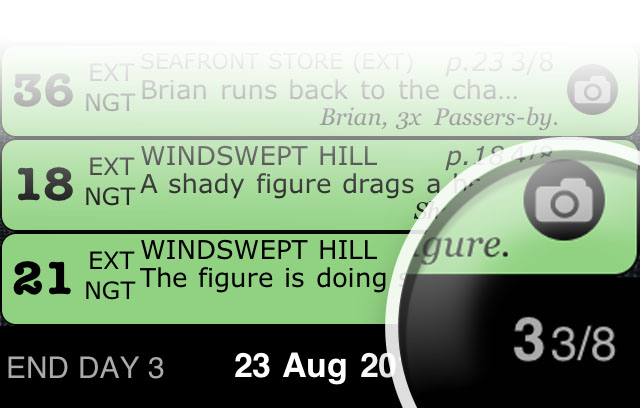
ShotList 3.0 Hits The App Store

Version 3.0 of “ShotList”, our app for planning out your movie shoots scene by scene, arrives on the App Store today with a number of new features requested by our users- including easier navigation from strip to strip in your project, and a great new way to find all your scenes that match a particular criteria.

Fast Move Between Strips
You can now move directly between strips  from the Details page by swiping up or down with one finger, this moves to the previous or next strip in your current shooting order.

Accessing Notes
You can now edit or view notes by tapping them, just like the other panels on the Details page. On the Notes page you can scroll forward and back with a swipe, or tap to activate hot links for phone numbers or web addresses.

To edit notes, tap the button at top right.

Returning To The Stripboard
When you return to the Stripboard page from the Details page, the strip you were editing will flash briefly in blue to help you locate it.

Show Notes In Oneline Schedule.
You can now output notes with the oneline schedule if you wish. Simply enable the slider for “Include notes”, and any notes that exist for a strip will be added to the schedule output. We also fixed a bug where the total number of pages wasn’t displayed correctly for each day.

Filtering Scenes By Character, Location Or Time Of Day.
This will select all strips that match a chosen set of conditions. You can select combinations of characters, location, time of day or setting (interior, exterior, I/E or greenscreen). All strips that match are selected- ready to move or duplicate, or simply to review.

This allows you, for instance, to easily find “All scenes that involve your lead actor at night”,  “All scenes with your star and co-star together” or bring up “All daytime scenes at the BEACH or BEACHHOUSE locations”.

This is a great help when you have intially broken down the script and want to sort by location etc. to start planning your shoot and group similar scenes together. Once the shoot is underway it also provides a quick way for you to identify scenes that may need to be rescheduled when a problem occurs, such as losing a certain actor due to illness or injury. Continue reading “ShotList 3.0 Hits The App Store”

How “FAQ” Helps You Communicate.

We have just created a video to tell you all about FAQ, our brand new “email composer” app to help with repetitive tasks like Customer and User Support. It can also help when communicating with colleagues, team members, congregations, students, pupils or any other groups you may often repeat the same information to.

In the video we explain how FAQ works, and then show you how it can be used to answer a customer email with just a few clicks. FAQ is now available on the App Store

Welcome to our first 30,000 MailShot users!

We have just heard from Apple the fantastic news that we now have over 30,000 MailShot users. Whether you are using the free version of MailShot (which features an in-app upgrade to Pro) or the separate MailShot Pro app, we’d like to wish a very warm welcome to you all. If you have any suggestions or requests that would improve your experience, we’d love to hear them.

We rely on word of mouth for the success of MailShot so, if you get the chance, a review on the App Store is always really appreciated (just follow the links above)

On the other hand if you need any help with MailShot, please see our support page, or drop us a line. We always try our best to help (so much so, that we recently released an app to help with customer support !)

Great New eBook “Talking to Siri” Features MailShot Pro

This new eBook from regular TUAW.com columnists Erica Sadun and Steven Sande, is a fantastic hands-on guide to tell you everything you could need to know about using Siri, a lot of which you won’t have discovered yet. It is concise and very reasonably priced, at $5.75. Recommended.

They were also kind enough to feature our MailShot Pro app as a great solution to sending group email with Siri.

“FAQ” Makes Supporting Your Customers Easy.

FAQ, a unique new app to handle customer support on the iPhone and iPad was released today from Soluble Apps, developers of the popular “MailShot Pro” group email app.

The best apps are often those written to solve a need shared by their developer, as this means they can fully appreciate the problem they are trying to solve. “FAQ” is one such app, and was designed to answer user support questions quickly and efficiently (or for any other situation where you might want the elements you need to compose emails right at your fingertips.)

Since its original release at the beginning of the year, we have handled a fair bit of user support for our popular “MailShot Pro”  group email app, and I like to think that the way we have done so has contributed to the reputation, and probably the review scores, that we have gained in that time. We try to treat each customer as an individual. Each enquiry reveals differing levels of supporting information, and user expertise, or asks a slightly different combination of questions, so we wouldn’t feel entirely happy just sending out a stock reply. But we also found that we are also repeating ourselves a lot, and doing far too much typing on our iPhone and iPad keyboards.

So we created FAQ, which makes its debut today on the App Store.

FAQ makes customer support much less repetitive. You use it to hold answers to all the most common questions you receive, along with reusable elements like opening and closing phrases, and supplemental information you might need (including images or web links). The items you select can be quickly combined into a response, ready to mail out, or copied to the clipboard, ready to paste back into a reply.

FAQ can also be used in many other situations where you may need to repeat information to customers, colleagues or pupils- such as warnings and disclaimers, instructions for finding your offices, stating office hours etc.

See the app page or support page/user guide for more information. Or find us on the App Store

UPDATE: This New video walks you through using FAQ for your customer support, and shows you it in action!

MailShot and iOS5

Upgrading to iOS5 brings a number of great new features to your device, including iCloud contact sharingDocuments in the Cloud, iCloud backup and Siri Voice Recognition. iOS5 is a free upgrade for all iPads, and all iPhones more recent than the iPhone 3G.

This post is about how these new features interact with the current versions of MailShot and MailShot Pro.

Migrating to iOS5 from iOS4.

Don’t forget to backup your device to iTunes manually as a safety precaution. (iTunes should do this for you too, but a backup is sensible.) Make sure that you select “restore from iTunes” after the upgrade and not “restore from iCloud”, this step restores the data for MailShot and your other apps as your data is not yet in the cloud. Take care not to unplug your device from iTunes until the restore process is complete.

In some cases apps may take a while to sync to your device wirelessly. If this doesn’t happen and you need to manually reinstall MailShot, please take care to get the correct version between “MailShot” or “MailShot Pro“, as the AppStore regards them as different apps and charges for them separately. See this entry for more on upgrading if you want to know more.

If you see a message about “no suitable address book” after upgrading, try enabling iCloud for contacts on your device.

If you have any other problems when changing to iOS5 see our support page, or drop us a line if you still can’t solve it and we’ll do our best to help.

Siri 

Siri is the amazing new voice assistant (for iPhone 4s users only, at the moment) and, even more amazingly, we are happy to announce that you can use it to dictate and send an email to a MailShot group that you created. Simply say “send email to groupname” to Siri, using the MailShot group name just like a contact, and it will be sent to that group.

We are not aware of ANY other group email app on the Store that could work with Siri!

iCloud Contact Sharing

iCloud Contact Sharing will enable you to share MailShot contacts created on one device to others using the same iCloud account, wirelessly. Ensure that Contacts is enabled in the iCloud tab in Settings to use it

As everyone can now use iCloud.com to access their contacts, this makes it easy to create address book groups in the iCloud web apps if you have access via a PC or mac (something you could not do on your device with the default apps). If you create any groups in this way, you can quickly import them into MailShot using the “Import” button.

iCloud Backup

Once you have upgraded, your MailShot data will backup to the cloud automatically. The data itself is fairly small, so should not have much impact on the 5M of free storage that Apple give you.

Backup can be enabled and disabled from the Settings app under “iCloud”/ “Storage & Backup.”

Mail

Mail is gaining usability improvements such as the ability to format text using bold, italic and underlined fonts, and better control of indenting. You can still send mail to your MailShot groups from Mail, just as you did before, and take advantage of those new features.

Mail now allows you to drag contacts from one address line of an email to another (say, from “to:” to “bcc:”) this works with MailShot groups too, though you cannot move the individual contacts within a group around because the group is one person, as far as iOS is concerned.

Documents in the Cloud

Documents in the Cloud allows apps to sync data between multiple devices using the same iCloud account. However all apps need to be rewritten and have an update released to take advantage of it. Developer support is still scarce, but we plan to add support for this feature in an update before too long.

For now you can move data between devices manually if necessary using iTunes file sharing, but we still recommend that you only manage each group on one device, any contacts they create will synch to your other devices anyway.

Reinstalling Apps

The App Store makes it much clearer if you are reinstalling an app, as you can now bring up a list of the apps you have downloaded previously, and the button you would press to download in the App Store will also now say “install” instead of showing the price if you have already paid for an app. Hopefully this will prevent some of the confusion some users experience between MailShot and MailShot Pro, although it won’t help with in-app updates.

We have been using iOS5 for testing here for well over a month without too many nasty surprises, but please let me know of any changes, tips or problems you encounter with iOS5 with any of our products, and we’ll do our best to help you resolve your problem.

MailShot 1.50 Is Released on The App Store

Version 1.50 of MailShot is now available. This is our sixth big update since release, adding even more new features to MailShot.

This update adds the most commonly requested feature from our tens of thousands of users- the ability to add contacts quickly from a checklist- and some new features to help catch contacts with badly formatted information. You can find most of the new stuff under the “import” button.

Our MailShot support page is always available if you need it, or you can drop us a line if you need more assistance.

NEW Quick addition of contacts from “All Contacts”, using a checklist.

Tap “import” and select “Contacts Checklist”.

This feature brings up a big list of all your contacts. Just set the check mark against the email addresses you want to import, and you can bring them all in at once by tapping on “Add”.

Addresses that are already present in your group are displayed too (so you can see that the contact is already present even if they have more than one email address) but they are not selectable here, so you can’t remove them by accident.

NEW Quick addition of contacts from groups, using a checklist.

Tap “Import” and select “Address Book Group”.

We had a few requests to import some contacts from an address book group without importing the whole group. This feature uses a checklist (this time with all the contacts and addresses selected by default) and you can deselect any alternative email addresses that you don’t want to include, or contacts you want to omit.

Again, addresses that are already present in your group are displayed too, but do not have a check mark function.

This replaces the old method of importing groups from the address book

NEW Manual contact entry.
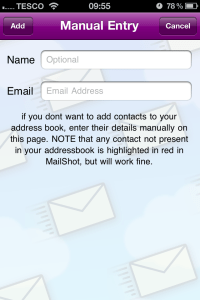
Tap “import” and select “Manual Entry”.

We had a few requests from people who wanted to manually add contacts to MailShot without going through the address book system (as they didn’t want these people among their regular contacts?). This allows them to do just that.

If you enter just an email address here, that will be used as the contact name.

If these contacts are not present in your address book then their email addresses will be shown in red throughout MailShot, this is to highlight email addresses that are not present in your address book (in case they need attention,) but will not prevent MailShot from working.

NEW Validity check of email addresses as they are added.
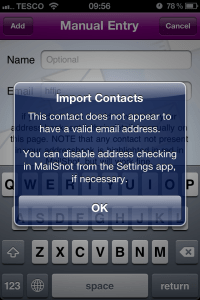
Email addresses are now checked as they are selected on the new import screens. If they don’t pass a validity check, a message is displayed instead. (Note: This check tells us if the email COULD be valid, it isn’t a check that the contact address actually exists)

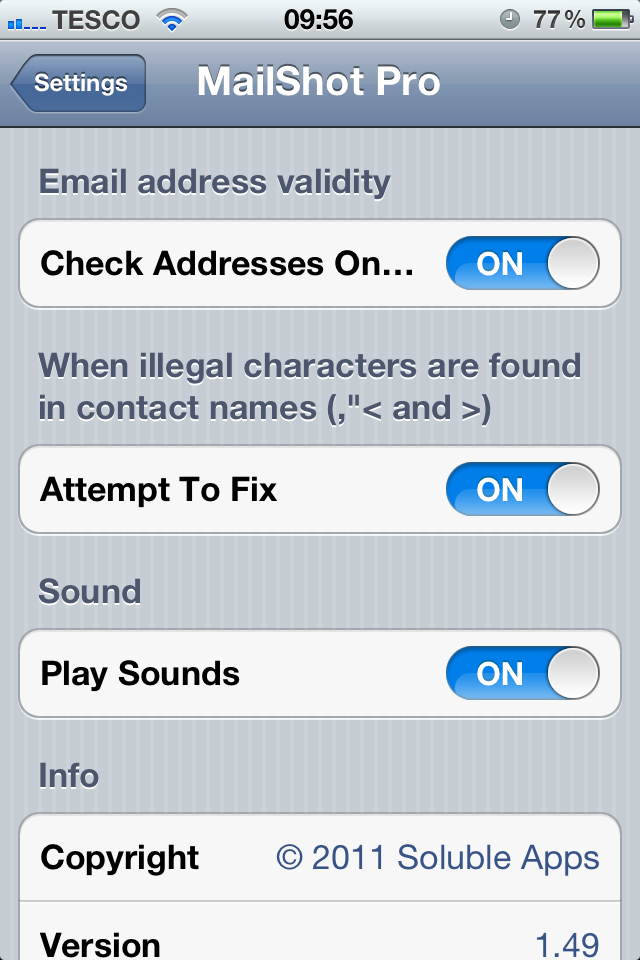
If you are positive that an email is correct, you can temporarily disable this validity test in the Settings app on your device.

If you have a lot of email addresses that don’t pass the test you can leave it permanently disabled, but if you do need to do this, please let us know the email addresses you are having a problem with. We have not had a single report of a valid email being rejected in the month since release.

NEW Fix for bad contact names that include illegal characters.

Some people have contacts with a comma, greater than, less than or quote mark in their contact names. This is illegal formatting, and causes the server to reject some groups, so this option wraps those contact names in quote marks, and swaps double quotes to single quotes.

If this process causes a problem, it can be disabled in the Settings app on your device.

NEW “Pro” graphic now appears on title screen when upgraded.

A number of people were unsure whether or not they had upgraded from the free version correctly, so a (rather unsubtle) golden “pro” graphic now confirms this for them.

NEW Cancel changes to contacts in a group.

If you make changes to your group, then change your mind, you can now cancel all changes without writing them to your address book by tapping the ‘edit’ button on the contact add screen, then the ‘cancel’ button that appears.

FIX Semicolon separator option removed.

This option was more trouble than it was worth, as an incorrect setting here caused some people to only have a single contact receive their mail, so we have removed it with this update.

NEW Updated icon with bevelled edges.

This is just to make the icons for MailShot Pro and MailShot more similar to each other.

Please remember that the App Store considers MailShot Pro and the in-app upgrade for MailShot as two different products. If you purchase both, Apple will charge you for both. See “Do I have to pay twice if upgrade again?” for more details on this and how to avoid it.

As always, thanks for your support and suggestions, which we believe have helped make MailShot the best group email solution on the App Store for tens of thousands of people.

If you get the chance we would love it if you could rate us again following the update, as all your fantastic ratings and reviews get moved to another page on the App Store every time we update. Much appreciated.

ShotList 2.0 Now Available- All About The New Features

Version 2.0 has just been released on the App Store, and is the first of what we hope to be a string of updates to ShotList.

Over time we plan to build this app up into an indispensable tool for filmmakers of all abilities. We do this by listening to our users and adding the features that are most often requested via our support email address or App Store or Blog reviews. Almost all of the features added in this update are a direct result of a request from one or more users, and address over half of the items raised in our App Store reviews.

This update adds a number of major features and fixes. We will incorporate them into the User Guide for new users very soon.

NEW: Select and move multiple strips on the Stripboard.

This lets you move groups of strips around on the stripboard much more easily. You can select strips from all over the stripboard, and they are all grouped together when they move, so this is a good way of, say, gathering all the shots for a specific location together, or moving all the shots for a shooting day to a new place in the schedule if the order changes.

Tap “Schedule” on the Stripboard page to enter the mode which allows you to create delete or move a strip, the navbar now turns dark red in this mode. Then…

To select several strips at once tap the middle of a strip, they light up as they are selected. Tap a strip again to deselect it. The navbar shows how many strips you have selected.

Deselect all the strips or tap “Done” if you wish to leave this mode.

To move selected strips  tap “=” on a selected strip. You can now drag it to the position you want to move the strips to. They will form a new group there.

NOTE: Only the top strip is seen to move around (as showing multiple selected strips would obscure the location they were to be dropped in.)

NEW: Duplicate strips, singly and in groups.

A few users asked to be able to duplicate strips instead of just creating new, blank ones. This lets them do that for individual scenes, and also to copy a full run of scenes if they have a sequence repeated by different actors, or in different locations.

To duplicate strips, select the single strip or group that you want to duplicate (as shown above) then tap “+” on a selected strip. This creates duplicates of the selected strips. The duplicated strips remain selected so you can move them to a new location easily. The scene numbers have the letter “D” added, to show that they are duplicates.

NOTE: You can copy Day Markers right along with those scene strips if you want, they behave consistently.

NEW: Storyboard thumbnails on the details screen. (iPad)

You can now view all six of your storyboard frames for a scene as thumbnails right on the iPad Details screen. Tap an image to toggle it as complete when it has been shot.


NEW: Camera icon shows status and quick access to Storyboards

(All)

On all versions a new camera icon added to the Details screen provides quick access to the Storyboard screen for that scene. It works like the camera icons on the Stripboard screen, showing whether all the shots are complete.

NEW: Show cast as names rather than numbers.

By default, character names instead of numbers are now displayed on the Stripboard and Details screens. If you would like to change this, switches in the Settings app provide separate control of which is displayed on each of those screens.

Renaming and reordering the cast is planned for a future update.

NEW: Added options to for location type and time of day settings for each scene.

In addition to INT and EXT, you can now also choose” I/E” (INT/EXT) and “GRN” (for a greenscreen stage). I/E will use the same strip colours as EXT, and GRN uses a bright green for all times of day.

You can now choose “MRN” and “EVE” for times of day for each scene, in addition to DWN,DAY,DSK and NGT. There is also a new option of “D4N” for “Day For Night” shooting.

NEW: Page Count shown on day strip as “days and eighths”. 

A minor tweak, but when showing the total number of pages planned for each day’s shoot we now show the number of pages and eighths, (e.g. “3 4/8ths”)  on the day strips, instead of large numbers of eighths (such as “28/8ths)”.

NEW: Pick images, and make selections from popovers (iPad.)

Increases compatibility with iPad. We will be looking at making more use of iPad-specific features in future updates.

FIX: iPad Photo Library crash. 

There was a problem when adding images from the Photo Library, only on iPad. This is now fixed.

FIX: Enter Dropbox with no project selected. 

You can now enter the Dropbox section, even with no projects on your device.

FIX: Load more image formats from Photo Library. 

Some image sizes in certain formats wouldn’t load from the Photo Library correctly, they now will.

FIX: Replace the tide table link in new Sample Projects with a real one. 

Very minor tweak, but the sample project created for new users contains an example of an internet link. This now goes to a real site rather than a dummy, as otherwise users may think the feature doesn’t work.

***

We hope you enjoy the new features. If you would like to see something added or changed, please let us know. We can’t promise we will be able to do it in the next update, but it helps us to prioritise our work, and to get a clear image of how you are all using ShotList, and to tailor it to your needs. The next update is planned for around 4-5 weeks time.

If you are finding ShotList useful (and especially if you see a criticism in an earlier review that has now been addressed) we would love you to review and rate ShotList on the App Store. The more people are using it, the more we can continue to support and expand it into the fantastic tool I am sure we would all like it to become.

Please send requests, or comments to shotlist@solubleapps.com.

MailShot Review Roundup Episode IV- “A New Hope”

Version 1.41 of MailShot has been out for a month or two now, so it must be time for another roundup of user reviews around the world’s App Stores!

Here is the current status (from the AppFigures website) for our ratings for MailShot in the US:

In general the reviews and ratings are fantastic, and getting better each time, thanks to you all for your kind words.

As usual we have also included the few isolated negative ones we have had, with responses- in most cases any negative ones this time were because they didn’t read past the first sentence of the app description for the free version of MailShot. We have taken steps to make the information on the restrictions of the free version harder to miss since then. As this is a LONG post, it continues on below the fold, just tap the link at the bottom to continue reading.

If you are already a satisfied user please take the time to add your opinion and rating on the App Store. We need and really value your support.

UNITED STATES

Much needed functionality Mr_Baldilocks *****
An excellent app that provides the missing group email functionality in a terrific application. I liked the try & buy as well, even if it is only $3.99. At least I knew I was buying quality 🙂

Up and Running THANKS  PR Notes *****
Just found this app this afternoon and was using it in no time. Thanks so much now my emails from my iPad can play with the big guys.  I belong to several different groups and this app will make my life so much easier. Thanks again it’s great!

Only four bucks JoeWinstonDoctortm *****
Only four bucks for the most effective group mailing application on the market! Yes after five addresses you are given the opportunity to upgrade for only four bucks, but it is worth ten times that! I currently have three major groups that I MailShot on a regular basis! I couldn’t put a price on the time that it has saved me…..Priceless! The most convenient and cost effective application that I have ever purchased! Great Job!

Continue reading “MailShot Review Roundup Episode IV- “A New Hope””

MailShot- Breaks 15,000 Users

We have just heard from Apple that we have now broken the 15,000-user mark for MailShot, following a boost from the recent launch of our MailShot Pro option on the App Store. We hope you are all enjoying the unique way it allows you to mail to groups from within your applications.

We still love to hear from you. Feel free to get in touch to tell us how you are using MailShot, to request features you’d like to see, or to ask for advice or help with a problem. This interaction is what has helped to make MailShot great, and is something we are continuing with our new ShotList app for filmmakers.

Our comprehensive User Guide provides a good runthrough of how to get the most from MailShot. You can also still find advice and many answers to the most common user questions on our support page.

Many thanks go out to all those that have spread the word through social networks and forums and contributing reviews to the App Store, it’s always appreciated. If you haven’t done it yet, please review us if you get the chance, as all the great reviews we have received so far are harder to find when we put out an update.

ShotList- Update 1.01 Released

Version 1.01 of ShotList has just been released on the App Store. This is a patch we rushed through to fix an issue in Version 1.0 that limited users to only five live projects at once. It will become available in the next few hours.

We are currently working on Version 1.10 (catchy name, huh?) which adds:

  • Multiple move and Duplication of strips on the stripboard
  • Fix to a crash when accessing the Photo Library on iPad
  • Storyboard thumbnails on the iPad “details” screen
  • and more

 This will also be released before the end of the month. See our support page for the latest update on our latest updates.

New “Pro” Version of MailShot Increases Options

We have just released  a “Pro” version of our popular group emailing app, MailShot. It is now available in two tasty flavors:

Our original version is still free. Try it out for yourself with a small number of contacts per group, and easily upgrade to Pro with an in-app purchase.

The new “Pro” version is the same delicious content, but already upgraded to its full capability of up to 50 groups, each with over 50 contacts. It can be distinguished by the golden envelope on its icon.

We produced this second version after receiving a number of requests from fans of the original for a version that they could gift to others, we also had enquiries from a few large companies about installing MailShot on a number of machines they were planning to roll out to their staff. You couldn’t do either of these with the in-app purchase, but now you can.

You can find it on the App Store, here for the original version, and here for the “Pro” version.