MailShot 2.0- Exchange, Android and More!

MailShot and MailShot Pro 2.0 are now available on the App Store. These are the latest in a long line of free updates to be released for our unique group email app since its launch last year, adding useful features each time.

Among other things, this update allows control over where your MailShot contacts are saved and introduces a new additional email format for compatibility with other platforms.

Select which address book to save to.

MailShot now saves its special group contacts to your default address book.

TIP: The default address book for your device is set on the “Mail, Contacts Calendars” page of the Settings app.

If you need more control over where your contacts are saved, you can select which address book types to use.

You can find more information on our support pages.

Exchange, Android and Google.

You can now store MailShot contacts in address books that are synchronised with an Exchange server. This simplifies a few things that tripped new users up, and allows you to synchronise MailShot group contacts to Android, Google etc.

You can use these group contacts to send email from Android devices, or from Google’s web mail. These extended features are provided as a convenience for our users, and your results may vary. Please do let us know if you encounter any problems or restrictions on use or group size when using this feature, so we can advise others.

TIP See these links for tips on using Mac Mail,  iCloud.com and the GMail iOS app for other workarounds to send email to MailShot groups.

‘Standard’ email address format.
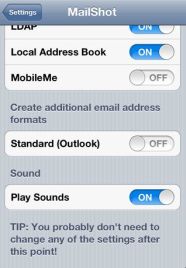
MailShot uses a special address format for compatibility with iOS Mail.

You can now also create an additional, “standard” email address for the group contact.  This is enabled on the MailShot page of the Settings app.

This additional format will allow you to use MailShot groups in more places (but probably not Outlook, despite the name). Please let us know what does or doesn’t work for you.

NOTE: Take care to choose the correct address when you have two of them available. iOS is always listed first.

iCloud-based upgrading.

We now store the upgrade status for the free version of MailShot in iCloud.

If you install it to more than one device, a single in-app purchase upgrades them all (on iOS 5.0 and above.)

NOTE: Each group should still be managed from one device, and the contacts shared to your other devices.

Edit manually-entered contacts.

Just tap the contact in the list to edit its name or email address.

200-contact warning.
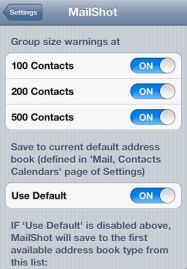
As more people create iCloud accounts, ‘me.com‘ addresses are becoming more popular. We have added an additional warning pop-up when a group exceeds 200 contacts, as this is the limit per email from me.com.

TIP: Any warnings that don’t apply to your email provider can be disabled on the MailShot page of the Settings app.

Confirmation before sort

We now ask for confirmation before a sort, as a number of users reported tapping the “sort” button when they didn’t intend to.

Retina Display

Icon and title page graphics have been updated for the new iPad retina display.

Minimum iOS version 

The minimum iOS version has been raised from 3.0 to 4.0. We estimate that fewer than 1% of our existing users are still using iOS 3.0-3.2.

If you encounter any problems please let us know, as we are always very happy to help. Our Support page and User Guide are also always available for you whenever you need them.

If you find MailShot useful, a new or refreshed review on the App Store is always very much appreciated (this is really important to us after an update, as old reviews get pushed to other pages.) The “rate” button on the title page of MailShot is provided to make this easier for you.


MailShot Pro Sends Group Email Around The World

A new version of MailShot hits the app store today, adding support for French, Spanish and Chinese languages.

We are really excited to introduce MailShot Pro to a wider audience of French and Spanish speakers, and into China, one of the fastest-growing markets in the world. The worldwide reach of the App Store gives a small developer like us a global presence in markets that we simply couldn’t enter on our own.

You can now find localised support for MailShot in French, Spanish, Chinese and of course English.

This release also fixes an issue that a few users have experienced when naming their MailShot groups.

As always, if you find MailShot useful, a review on the App Store is always very much appreciated, as each new release tends to hide the fantastic reviews we have received so far.

MailShot 1.60 Brings Larger Groups For Many Users

As thanks for helping us reach over 50000 users, and to celebrate our first year on the App Store, we have just launched another update to our popular “MailShot Pro” and “MailShot” group email apps, bringing increased group sizes and a number of other exciting new features.

NOTE: We recently renamed the in-app upgrade for the free version of MailShot to “MailShot Upgrade”, because a few users were confusing it with the “MailShot Pro” app, and were downloading (and being charged for) both. The upgrade still includes all the same great features as “MailShot Pro”.

New features in version 1.60 include:

More Groups.
The number of groups you can create in the upgraded and Pro versions has now been doubled, to 100.

TIP: Groups can be sorted into any order using the “Edit” button on the groups page.

More Contacts.
We have changed our address format, which will now allow you to address as many contacts as your ISP permits from the group contacts created in the new upgraded and Pro versions of MailShot. In many cases this is now 100 contacts.

We also added a warning when you exceed 100 contacts, which can be turned off in the Settings app.

NOTE: you can send to groups with as many as 500 contacts through Google Mail by connecting to it using the “Exchange” instead of the “Gmail” protocol, Here are the instructions. (For simplicity we suggest you don’t enable contact sync over Exchange if you don’t need it,  just enable it for email). Be careful of the daily limits on Google Mail.

Use MailShot group contacts from a Mac.

Contacts that you create in MailShot on your iOS device can also now be used from Mail on your Mac, too. Note that you will need to tap “update” on each group in the new version before using this feature.

See here on our support page for more on this.

Removing Someone From A Particular Email

You can now exclude a particular contact, or contacts, from a group before you send it.

Just tap “Cancel”,  save your email to drafts, then reload it again. You can now see all the contacts in the group by tapping on the address line, and can select and then delete them individually from the email.

See our support page here for more details.


Better handling of in-app purchases.

We now provide a clearer indication to users when an in-app purchase is successfully processed.

A “Restore purchases” button on the title page also enables you to restore a previous upgrade to a new device without any fear of being charged twice.

Importing MailShot groups back into MailShot.
Attempting to add a MailShot-created contact will show a list of the contacts it contains, for you to select contacts from.

You can use this feature:

  • To combine groups into larger ones
  • To import and manage a MailShot group someone sent you
  • Or to rebuild groups in MailShot after a backup failure or similar disaster.At a pinch you could use this to manage a group from more than one of your devices, though it is not recommended for that purpose (TIP: if you do try this, use a different name for the new group on your second device to avoid deleting or overwriting the original group)

Note that this feature can’t name the first contact in a group, as that isn’t stored, but it will restore their email address.

*TIP: You can easily share a MailShot group contact to someone else using the “Share Contact” button in the Contacts app- they don’t need to have MailShot installed to use it themselves on an iOS device or mac. (though they’ll need to store the MailShot contact in an address book which isn’t synched with Exchange,  iCloud is fine for this)

Add contacts from a button.
There is a new “+” button provided at the bottom of the page that lists contacts in your groups. This allows you to easily add a single contact to a long list without needing to scroll all the way to the bottom of that list

If you have any questions, problems. or suggestions please check out our support page or drop us a line on support@solubleapps.com. We are always more than happy to help. We also run a mailing list which sends updates like this out to you every few months, simply send the word “Subscribe” to mailshotlist@solubleapps.com, and we will add you. You can unsubscribe at any time.

We hope you find the new features useful, and as always we really appreciate it if you can take the time to review MailShot on the App Store, or update an older review, as all of our fantastic reviews  are moved from  the main page whenever we update, and we depend on your reviews to keep developing MailShot. Here are links to the App Store for “MailShot Pro” and “MailShot” to make it easier for you to review us. As always, many thanks for those that do, it means a lot to us.


MailShot Sails Past 50,000 Users!


It’s great to hear that we have just passed another milestone for “MailShot Pro” and “MailShot”,  with over 50,000 users now enjoying our unique group email solution via the App Store.

We are celebrating with a new free update for both versions within the next few weeks, bringing larger groups for many users, better handling of in-app purchases, and more in-app help and error detection. We’ll let you know more about it when its available.

Thank you all for spreading the word about MailShot to others, its great to see how it has steadily grown more rapidly each month, and much of this has been by word of mouth.

If you need any assistance with MailShot, please see our support page or drop us an email,  we’ll do our best to help you.

ShotList 3.0 Hits The App Store

Version 3.0 of “ShotList”, our app for planning out your movie shoots scene by scene, arrives on the App Store today with a number of new features requested by our users- including easier navigation from strip to strip in your project, and a great new way to find all your scenes that match a particular criteria.

Fast Move Between Strips
You can now move directly between strips  from the Details page by swiping up or down with one finger, this moves to the previous or next strip in your current shooting order.

Accessing Notes
You can now edit or view notes by tapping them, just like the other panels on the Details page. On the Notes page you can scroll forward and back with a swipe, or tap to activate hot links for phone numbers or web addresses.

To edit notes, tap the button at top right.

Returning To The Stripboard
When you return to the Stripboard page from the Details page, the strip you were editing will flash briefly in blue to help you locate it.

Show Notes In Oneline Schedule.
You can now output notes with the oneline schedule if you wish. Simply enable the slider for “Include notes”, and any notes that exist for a strip will be added to the schedule output. We also fixed a bug where the total number of pages wasn’t displayed correctly for each day.

Filtering Scenes By Character, Location Or Time Of Day.
This will select all strips that match a chosen set of conditions. You can select combinations of characters, location, time of day or setting (interior, exterior, I/E or greenscreen). All strips that match are selected- ready to move or duplicate, or simply to review.

This allows you, for instance, to easily find “All scenes that involve your lead actor at night”,  “All scenes with your star and co-star together” or bring up “All daytime scenes at the BEACH or BEACHHOUSE locations”.

This is a great help when you have intially broken down the script and want to sort by location etc. to start planning your shoot and group similar scenes together. Once the shoot is underway it also provides a quick way for you to identify scenes that may need to be rescheduled when a problem occurs, such as losing a certain actor due to illness or injury. Continue reading “ShotList 3.0 Hits The App Store”

Welcome to our first 30,000 MailShot users!

We have just heard from Apple the fantastic news that we now have over 30,000 MailShot users. Whether you are using the free version of MailShot (which features an in-app upgrade to Pro) or the separate MailShot Pro app, we’d like to wish a very warm welcome to you all. If you have any suggestions or requests that would improve your experience, we’d love to hear them.

We rely on word of mouth for the success of MailShot so, if you get the chance, a review on the App Store is always really appreciated (just follow the links above)

On the other hand if you need any help with MailShot, please see our support page, or drop us a line. We always try our best to help (so much so, that we recently released an app to help with customer support !)

“FAQ” Makes Supporting Your Customers Easy.

FAQ, a unique new app to handle customer support on the iPhone and iPad was released today from Soluble Apps, developers of the popular “MailShot Pro” group email app.

The best apps are often those written to solve a need shared by their developer, as this means they can fully appreciate the problem they are trying to solve. “FAQ” is one such app, and was designed to answer user support questions quickly and efficiently (or for any other situation where you might want the elements you need to compose emails right at your fingertips.)

Since its original release at the beginning of the year, we have handled a fair bit of user support for our popular “MailShot Pro”  group email app, and I like to think that the way we have done so has contributed to the reputation, and probably the review scores, that we have gained in that time. We try to treat each customer as an individual. Each enquiry reveals differing levels of supporting information, and user expertise, or asks a slightly different combination of questions, so we wouldn’t feel entirely happy just sending out a stock reply. But we also found that we are also repeating ourselves a lot, and doing far too much typing on our iPhone and iPad keyboards.

So we created FAQ, which makes its debut today on the App Store.

FAQ makes customer support much less repetitive. You use it to hold answers to all the most common questions you receive, along with reusable elements like opening and closing phrases, and supplemental information you might need (including images or web links). The items you select can be quickly combined into a response, ready to mail out, or copied to the clipboard, ready to paste back into a reply.

FAQ can also be used in many other situations where you may need to repeat information to customers, colleagues or pupils- such as warnings and disclaimers, instructions for finding your offices, stating office hours etc.

See the app page or support page/user guide for more information. Or find us on the App Store

UPDATE: This New video walks you through using FAQ for your customer support, and shows you it in action!

ShotList 2.0 Now Available- All About The New Features

Version 2.0 has just been released on the App Store, and is the first of what we hope to be a string of updates to ShotList.

Over time we plan to build this app up into an indispensable tool for filmmakers of all abilities. We do this by listening to our users and adding the features that are most often requested via our support email address or App Store or Blog reviews. Almost all of the features added in this update are a direct result of a request from one or more users, and address over half of the items raised in our App Store reviews.

This update adds a number of major features and fixes. We will incorporate them into the User Guide for new users very soon.

NEW: Select and move multiple strips on the Stripboard.

This lets you move groups of strips around on the stripboard much more easily. You can select strips from all over the stripboard, and they are all grouped together when they move, so this is a good way of, say, gathering all the shots for a specific location together, or moving all the shots for a shooting day to a new place in the schedule if the order changes.

Tap “Schedule” on the Stripboard page to enter the mode which allows you to create delete or move a strip, the navbar now turns dark red in this mode. Then…

To select several strips at once tap the middle of a strip, they light up as they are selected. Tap a strip again to deselect it. The navbar shows how many strips you have selected.

Deselect all the strips or tap “Done” if you wish to leave this mode.

To move selected strips  tap “=” on a selected strip. You can now drag it to the position you want to move the strips to. They will form a new group there.

NOTE: Only the top strip is seen to move around (as showing multiple selected strips would obscure the location they were to be dropped in.)

NEW: Duplicate strips, singly and in groups.

A few users asked to be able to duplicate strips instead of just creating new, blank ones. This lets them do that for individual scenes, and also to copy a full run of scenes if they have a sequence repeated by different actors, or in different locations.

To duplicate strips, select the single strip or group that you want to duplicate (as shown above) then tap “+” on a selected strip. This creates duplicates of the selected strips. The duplicated strips remain selected so you can move them to a new location easily. The scene numbers have the letter “D” added, to show that they are duplicates.

NOTE: You can copy Day Markers right along with those scene strips if you want, they behave consistently.

NEW: Storyboard thumbnails on the details screen. (iPad)

You can now view all six of your storyboard frames for a scene as thumbnails right on the iPad Details screen. Tap an image to toggle it as complete when it has been shot.


NEW: Camera icon shows status and quick access to Storyboards

(All)

On all versions a new camera icon added to the Details screen provides quick access to the Storyboard screen for that scene. It works like the camera icons on the Stripboard screen, showing whether all the shots are complete.

NEW: Show cast as names rather than numbers.

By default, character names instead of numbers are now displayed on the Stripboard and Details screens. If you would like to change this, switches in the Settings app provide separate control of which is displayed on each of those screens.

Renaming and reordering the cast is planned for a future update.

NEW: Added options to for location type and time of day settings for each scene.

In addition to INT and EXT, you can now also choose” I/E” (INT/EXT) and “GRN” (for a greenscreen stage). I/E will use the same strip colours as EXT, and GRN uses a bright green for all times of day.

You can now choose “MRN” and “EVE” for times of day for each scene, in addition to DWN,DAY,DSK and NGT. There is also a new option of “D4N” for “Day For Night” shooting.

NEW: Page Count shown on day strip as “days and eighths”. 

A minor tweak, but when showing the total number of pages planned for each day’s shoot we now show the number of pages and eighths, (e.g. “3 4/8ths”)  on the day strips, instead of large numbers of eighths (such as “28/8ths)”.

NEW: Pick images, and make selections from popovers (iPad.)

Increases compatibility with iPad. We will be looking at making more use of iPad-specific features in future updates.

FIX: iPad Photo Library crash. 

There was a problem when adding images from the Photo Library, only on iPad. This is now fixed.

FIX: Enter Dropbox with no project selected. 

You can now enter the Dropbox section, even with no projects on your device.

FIX: Load more image formats from Photo Library. 

Some image sizes in certain formats wouldn’t load from the Photo Library correctly, they now will.

FIX: Replace the tide table link in new Sample Projects with a real one. 

Very minor tweak, but the sample project created for new users contains an example of an internet link. This now goes to a real site rather than a dummy, as otherwise users may think the feature doesn’t work.

***

We hope you enjoy the new features. If you would like to see something added or changed, please let us know. We can’t promise we will be able to do it in the next update, but it helps us to prioritise our work, and to get a clear image of how you are all using ShotList, and to tailor it to your needs. The next update is planned for around 4-5 weeks time.

If you are finding ShotList useful (and especially if you see a criticism in an earlier review that has now been addressed) we would love you to review and rate ShotList on the App Store. The more people are using it, the more we can continue to support and expand it into the fantastic tool I am sure we would all like it to become.

Please send requests, or comments to shotlist@solubleapps.com.

ShotList!- Plan Your Movie & Video Shoots Like A Pro

We are very excited to announce that our groundbreaking new app for movie and video production, ShotList, will be released later this month.

ShotList helps filmmakers of all levels to plan and track their shoots scene by scene, by bringing the “Production Stripboard” system used by movie industry pros for many years to iPhone and iPad for the very first time.

Enter as much or as little information as you need from the script for each scene, add photos of storyboards or locations from your photo library, and then move each “strip” around to fine-tune your shooting order. Being so mobile, and always with you, Shotlist enables you to instantly change plans whenever something unexpected crops up on the shoot. It also has a major rôle to play in tracking the completion status of each scene, or shot, on the day.

We plan to update and upgrade ShotList regularly, just as we have with our unique group email app “MailShot“, so we would love to hear your requests and suggestions for which features you’d like to see in the next version. Maybe a “day of days” report? a list of cast required for each day’s shooting? a report on which scenes were completed on a given day? Let us know.

ShotList will be available on the App Store later this month. Check out the app page for more details, and screenshots of what this essential app can do.

Welcome to our first 10,000 MailShot Users.

We have just heard from Apple that over 10,000 people are now using MailShot after its first few months on the App Store. We hope you are all finding the unique way you can send mail to groups from within your applications useful, especially with the new features we just added in our most recent update. You will find that it is an app you can continue to benefit from, month after month.

We always love to hear from you. Please get in touch to tell us how you are using MailShot, to request features you’d like to see, or to ask for advice or help with a problem.

We have just produced a comprehensive User Guide, so take a look if you haven’t seen it yet, you are bound to learn something. You can also still find advice and many answers to the most common user questions on our support page.

It’s great to see how MailShot continues to grow, and we plan to continue to support it with updates in the future (we have updated five times already!). Much of our success so far has come from people spreading the word through social networks and forums and contributing reviews to the App Store.  Many thanks go out to all those that have done this, it’s always appreciated. If you haven’t, please review us if you get the chance, as all the great reviews we have received so far are harder to find when we put out an update.

Thanks again. We hope it won’t be too long before we are welcoming the next 10,000 users.

MailShot returns to the App Store with the best update yet

Over the past four months we have released five updates to MailShot, adding new features for our many thousands of existing users each time. The update released onto the App Store today marks the biggest change yet for most of our users- here is what it adds:

Quick Add For Contacts

When adding a contact with a single email address, MailShot will now automatically add that contact and return to the contact page in MailShot without needing you to select the address (if you would prefer to see a dialogue for confirmation, just disable “Auto-add contact” in the Settings app)

When you add or edit a contact with multiple email addresses, MailShot now pops up a dialogue showing all known email addresses for that contact. By toggling the checkmarks you can easily add, delete or exchange the addresses.

You can also now have MailShot automatically add all known addresses when adding or importing a contact with multiple addresses (enabled as “Auto-Add all” in Settings.)

Import Groups Into MailShot

This new feature lets you import an entire group into MailShot in one go.

If you already have conventional Groups set up in the address book on your device, tap the “Import” button in MailShot, and select the Group. MailShot will scan through the Group, automatically skipping over contacts with no email address, adding any unknown contacts with a single email address and allowing the user to choose which address to use for contacts with multiple email addresses (or to automatically add them all, if enabled in Settings)

You can re-import the group again at a later date to pick up any additions. (A user setting controls whether MailShot ignores contacts with multiple addresses that are already known, rather than prompting for an email choice again.)

If you have not upgraded MailShot yet, the usual limits apply to the maximum number of contacts in a group.

For more information on this feature, see this entry on our support page

Highlight obsolete contacts

To make it easier to keep MailShot in sync with changes in your address book, we now highlight any email addresses that aren’t found in your local address book in red when viewed in MailShot.

To keep MailShot as responsive as possible with larger groups, this status is only refreshed when MailShot starts up, and when you visit the contacts list for a group.

TIP To refresh the status for all the groups on the groups page at once, tap “Home” and then return to the groups page.

Don’t worry if you intentionally removed some or all of the original contacts for a MailShot group as part of your desired workflow. this isn’t a problem – MailShot will continue to work as before, despite the red text. (NOTE: This will also occur if you added a contact from a “Global Address List”, so it is not stored locally on your device)

Use more than 50 contacts in a group

A side effect of being able to import contacts from groups is that more users may now need the ability to manage larger groups than the current in-app upgrade allows, so we have removed the limit in MailShot. Of course you will still be at the mercy of any limits your email provider may impose for a single email (I hear that Google set their limit at 100, for example).

Its Good To Be Back

This release fixes an issue with the update early last week that affected a minority of users using Exchange Wireless Synch.

As soon as we discovered the issue we pulled MailShot from the store, before most users upgraded, and prepared this new version for release. Big props to the Apple approvals team for testing and approving this update for us inside a week. Thanks for that!

Help Us To Help You

We hope you enjoy the new features, but every time that we update we lose all the fantastic comments you have made in the past, so we would ask that you please support us by rating and reviewing the new version on the App Store if you can, and helping to spread the word about MailShot so we can keep the updates coming in the future. Please let us know on our support email address if there is anything you’d like to see in those future versions.

If you haven’t tried MailShot yet, where have you been? It’s currently free to try on the App Store. Head over there and try it now, to see what you’ve been missing.

MailShot 1.40 Released- Now You See It On The App Store, Now You Don’t!

Monday 17th May– Just after update 1.40 went live, we learned of a possible issue affecting some users using Exchange for wireless synch of contacts. As we don’t want our Exchange-using customers to receive an undesirable update, and there is no way to roll back a version, we have temporarily suspended Mailshot sales from the App Store. We apologise for the inconvenience, but it is the right thing to do. We’ll be back very soon.

Tuesday 18th May– A new version was submitted to Apple earlier today. We’ll be back on the Store as soon as it’s approved. If you use Exchange Wireless Synch and are getting crashes, please see this page for our recommended workarounds.

If you need early access to version 1.41 to solve a pressing need or would simply like the opportunity to participate in it’s development, please drop us a line and ask to join our free test program, we have a few spaces available.

Monday 23rd- “We’re ba-ack!???” The new version of MailShot is in its final testing stage at Apple. I hope we’ll have good news in the next few hours. See this post for a full run-down on the exciting features in the new update.